Портал > База знаний > Manuals with graphics > Drupal > 4. How to change your password in Drupal
4. How to change your password in Drupal
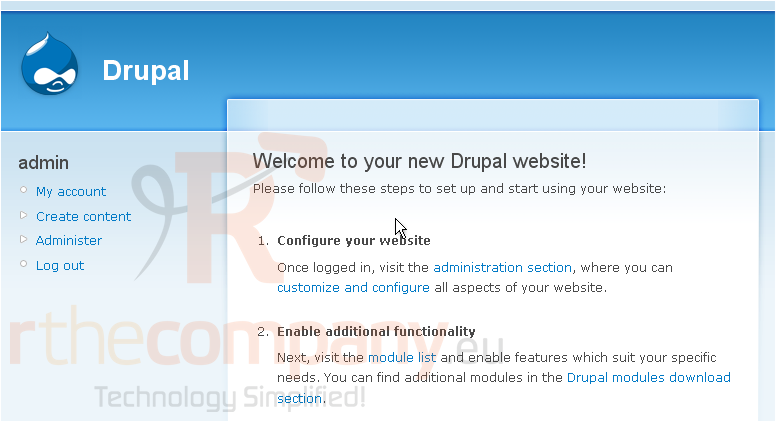
This tutorial assumes you've already logged in to Drupal
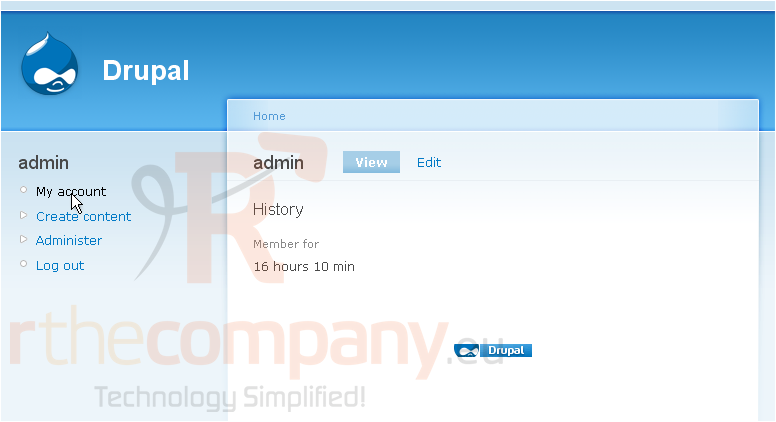
1) Click the My account link
Now let's learn how to change our Drupal password
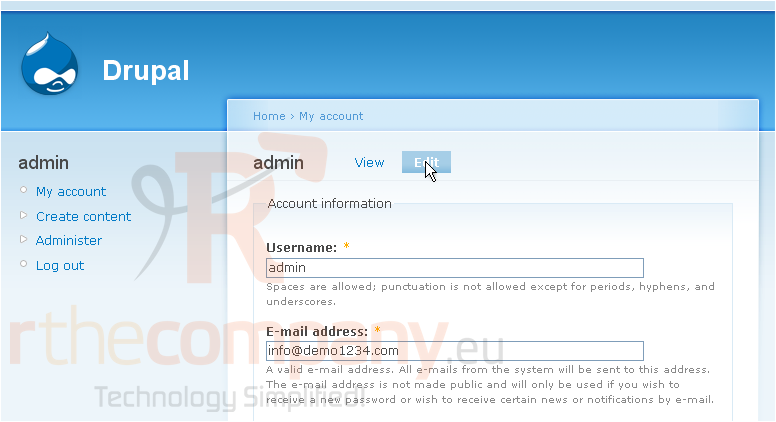
2) Then click the Edit link
Scroll down
This is the edit account page where we can configure our account and change our password
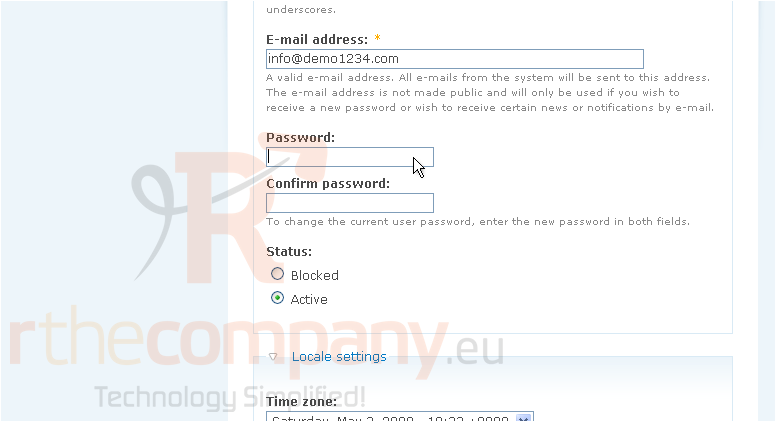
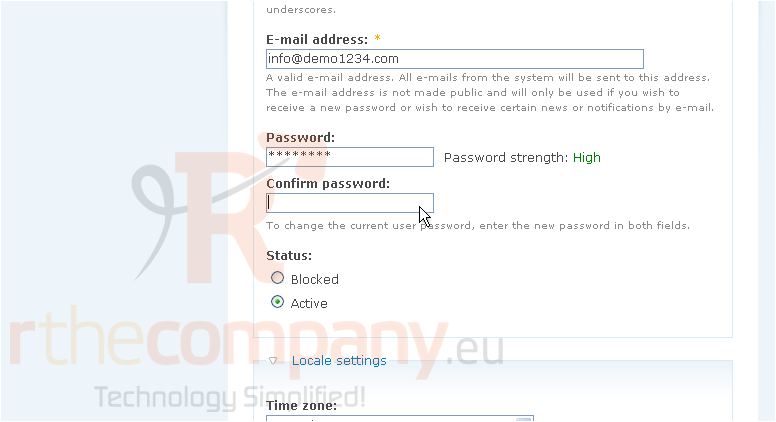
3) Enter a new password here
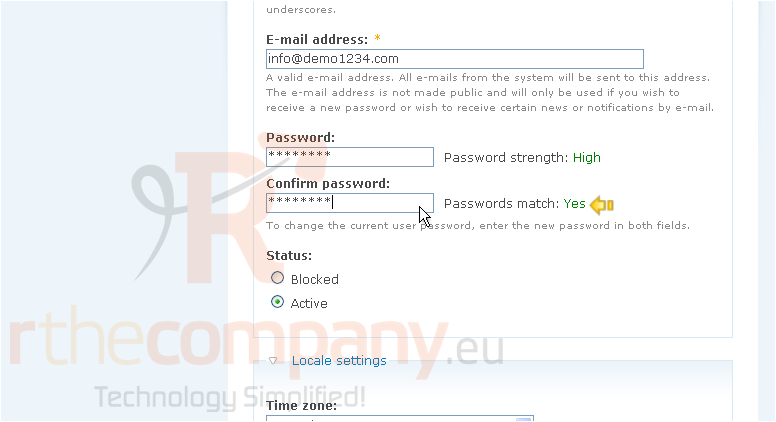
4) Confirm your password by entering it again here
Be sure the password match indicates "Yes", otherwise you'll have to re-enter your password in both boxes to ensure both entries match
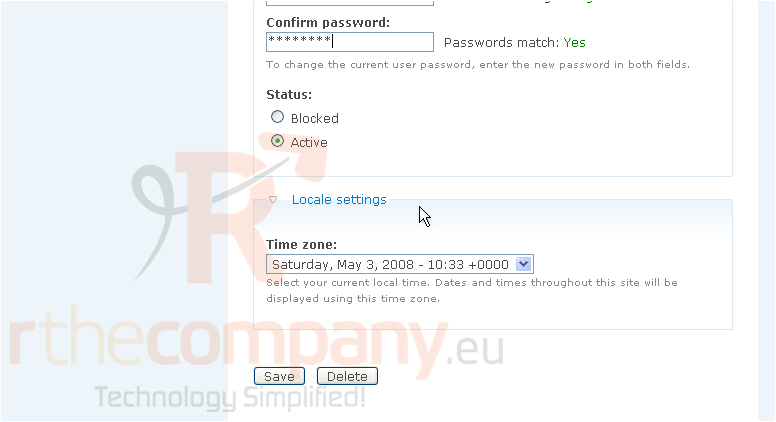
5) Then click Save
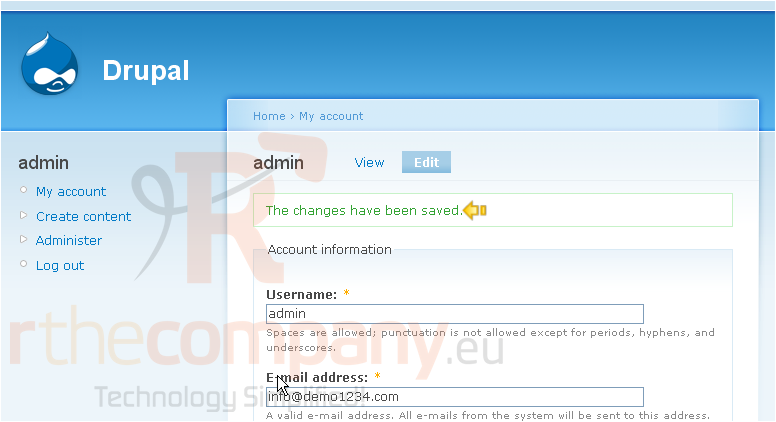
The password has been successfully changed
This is the end of the tutorial. You now know how to change your Drupal password
 Добавить в избранное
  Распечатать статью