Портал > База знаний > Manuals with graphics > CMS Made Simple > 19. How to install a module in CMS Made Simple
19. How to install a module in CMS Made Simple
This tutorial begins on the CMS Made Simple website at www.CMSMadeSimple.org, and assumes you are logged into your CMS Made Simple admin console
Now let's learn how to install a module in CMS Made Simple
1) Mouse-over Downloads
2) Click, Modules
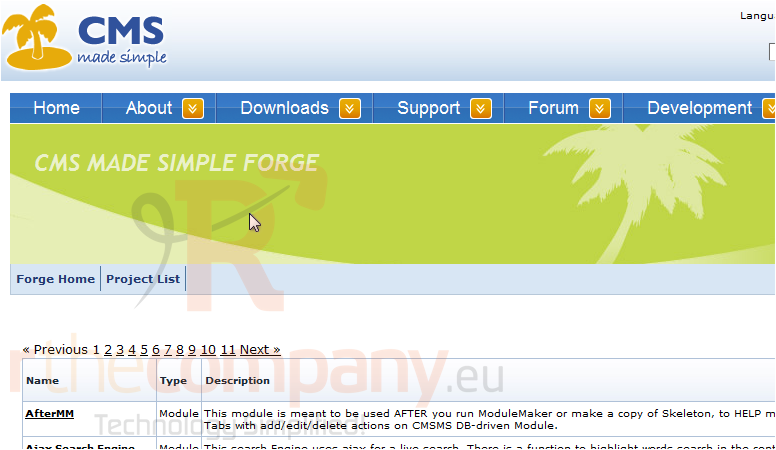
3) Click, Forge Home
Scroll Down
Scroll Right
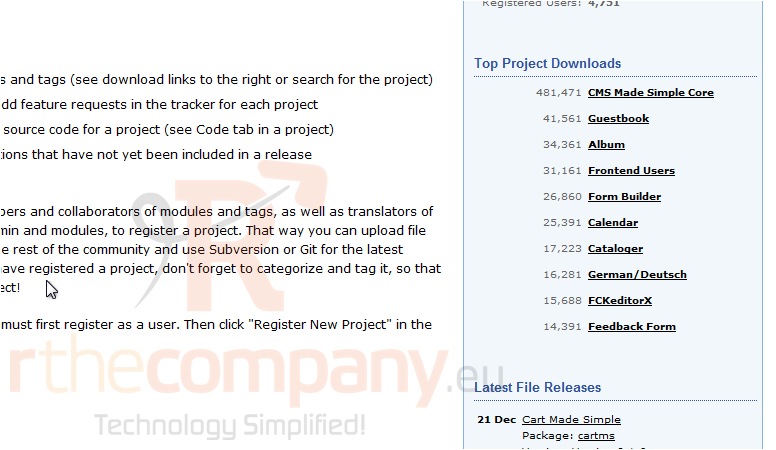
In this tutorial we will install Guestbook
4) Click, Guestbook
Scroll Down
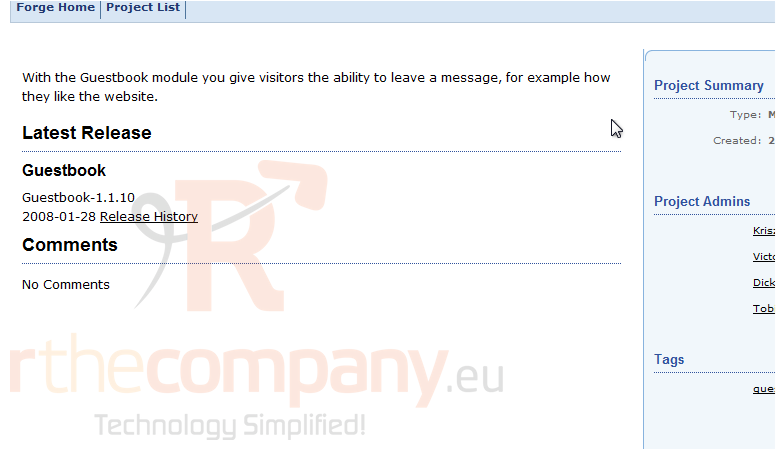
5) Click, Release History
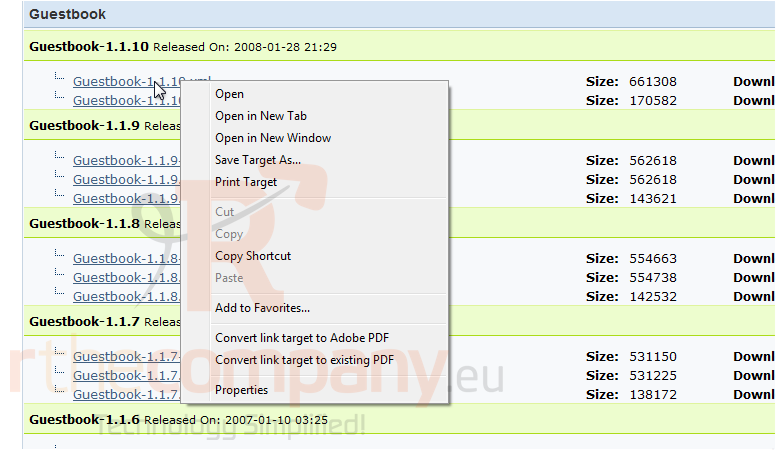
6) Right-click, on the latest release
7) Click, Save Target As
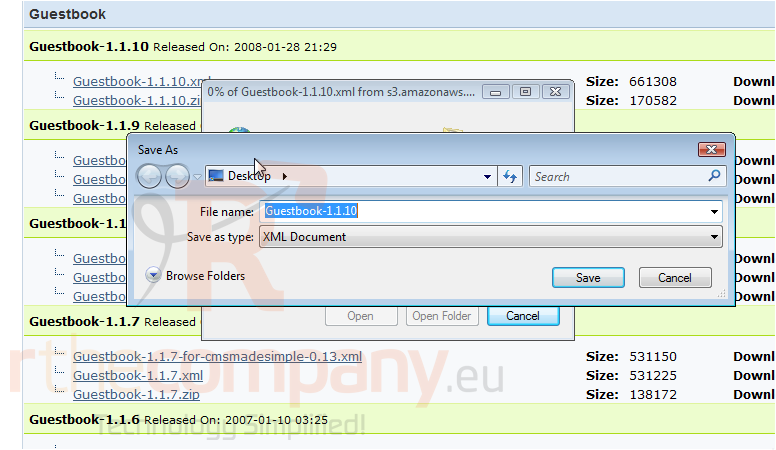
8) Choose the destination and File name
9) Once finished, click Save
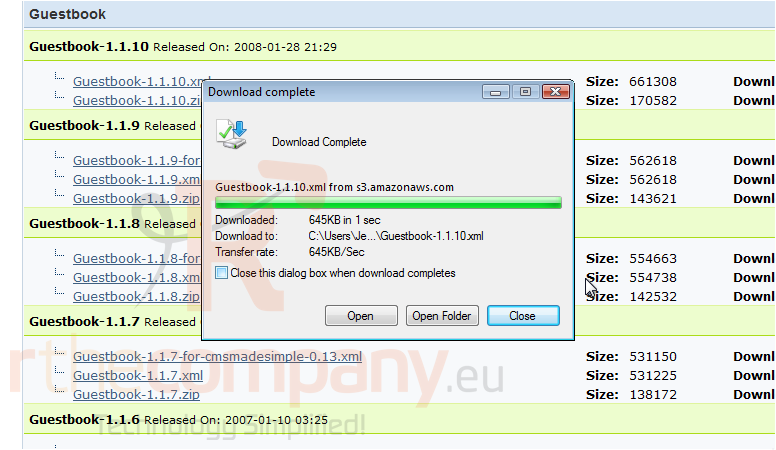
10) Once the download has completed, click Close
Now, lets open the CMS Made Simple Admin Panel
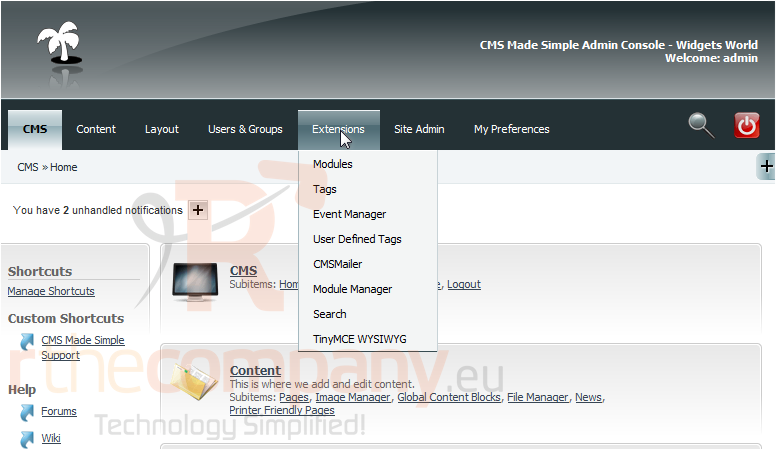
11) Mouse-over Extensions
12) Click, Modules
Scroll Down
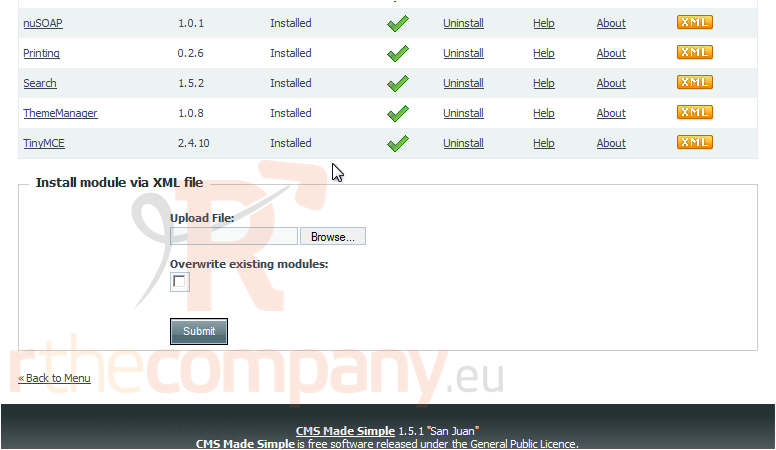
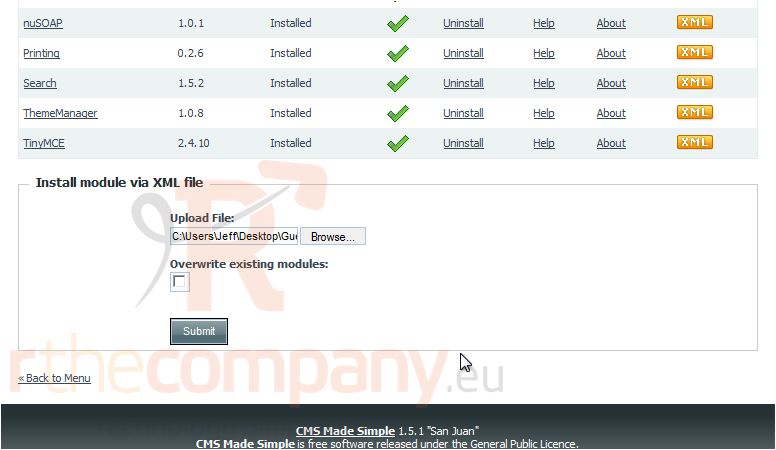
13) Click, Browse
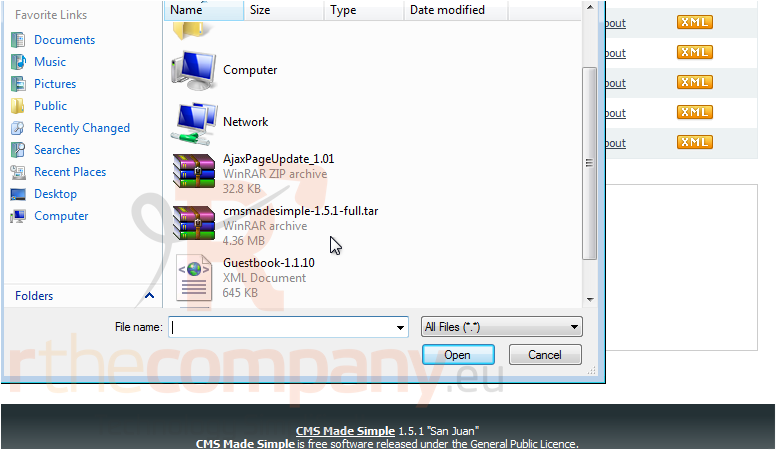
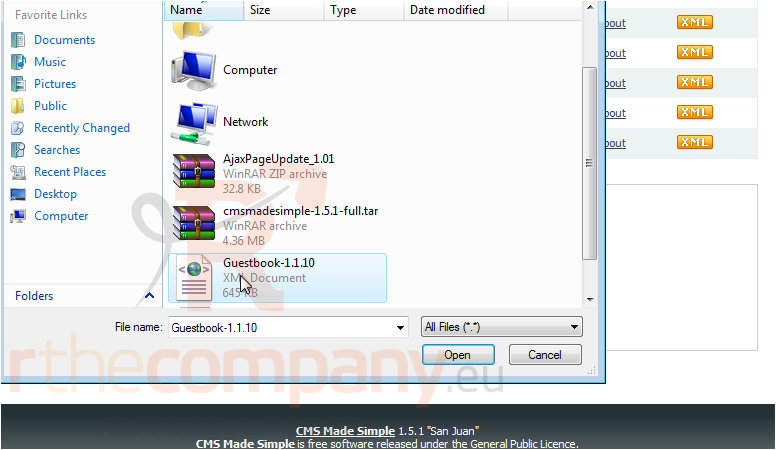
14) Find Guestbook-x.x.xx on your local computer
15) Click, Open
16) Click, Submit
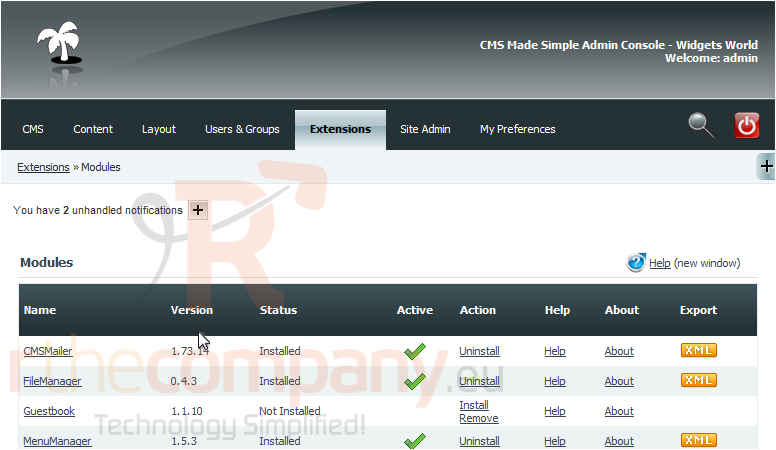
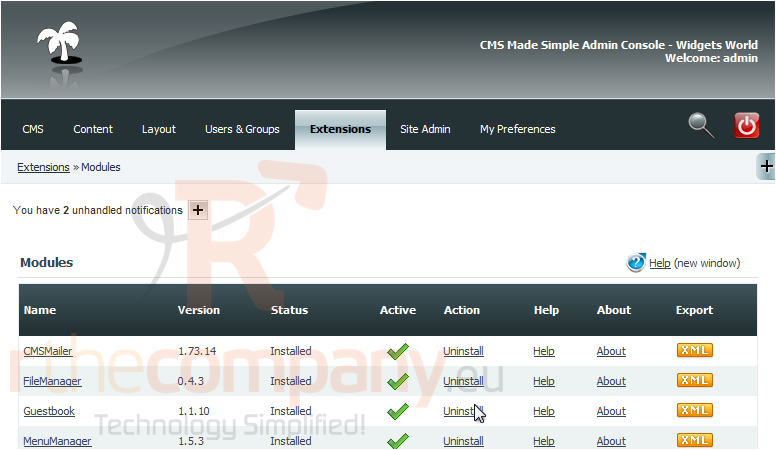
You can now see Guestbook in the list below, but the Status is Not Installed
17) Click, Install to install Guestbook
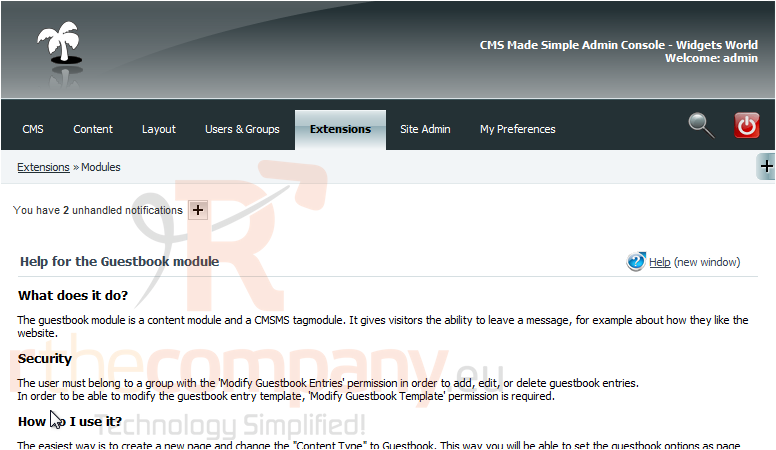
18) Click, Guestbook
You have successfully installed a Module
This is the end of the tutorial. You now know how to download and install a module within CMS Made Simple
 Добавить в избранное
  Распечатать статью