Portal Home > Knowledgebase > Manuals with graphics > Joomla CMS > 7. How to add custom HTML to your Joomla site
7. How to add custom HTML to your Joomla site
This tutorial assumes you are already logged in to your Joomla admin panel
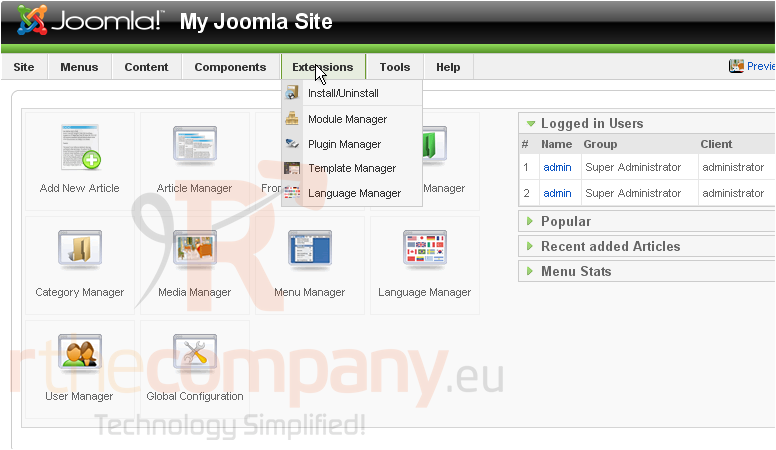
1) Click Extensions
2) Then Module Manager
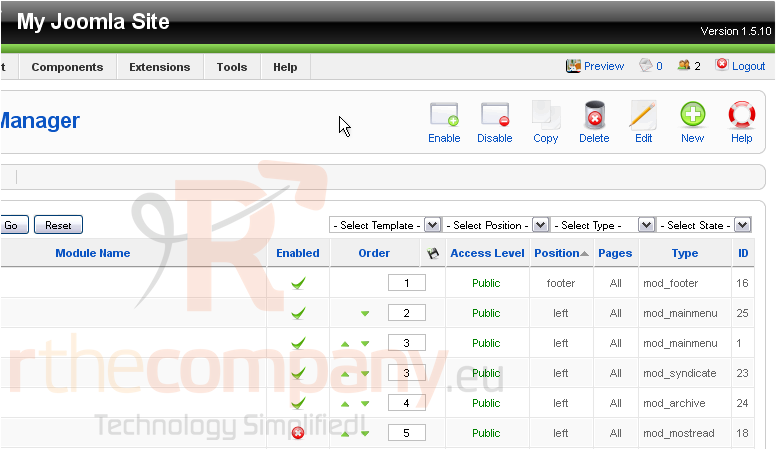
Scroll right
3) Click New
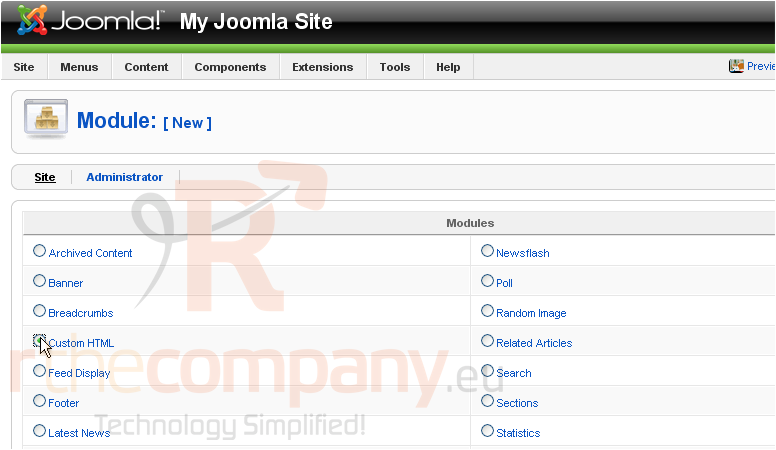
4) Select Custom HTML
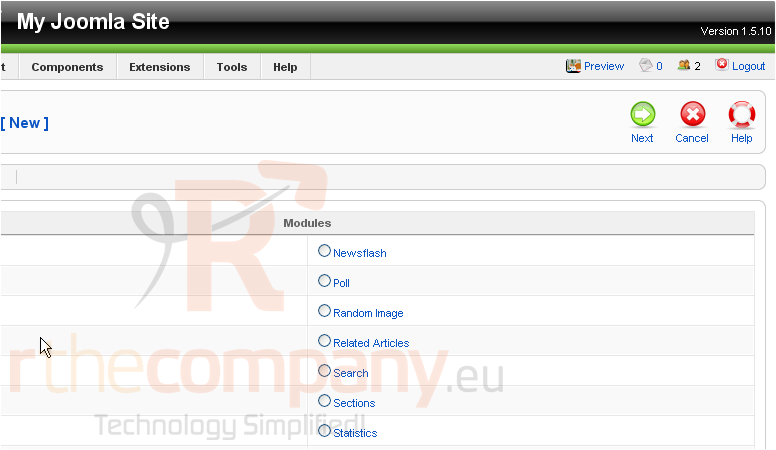
Scroll right
5) Click Next
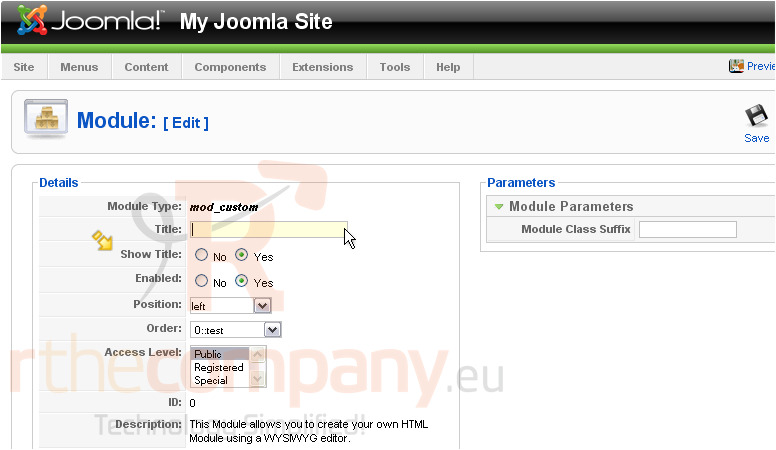
6) Enter a Title
If Show Title is set to Yes, the module name will be displayed on the front-end
Scroll down
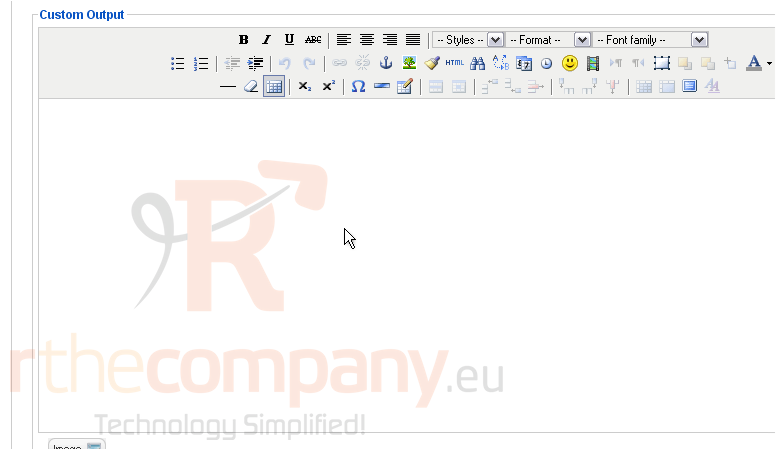
7) Click the HTML icon here
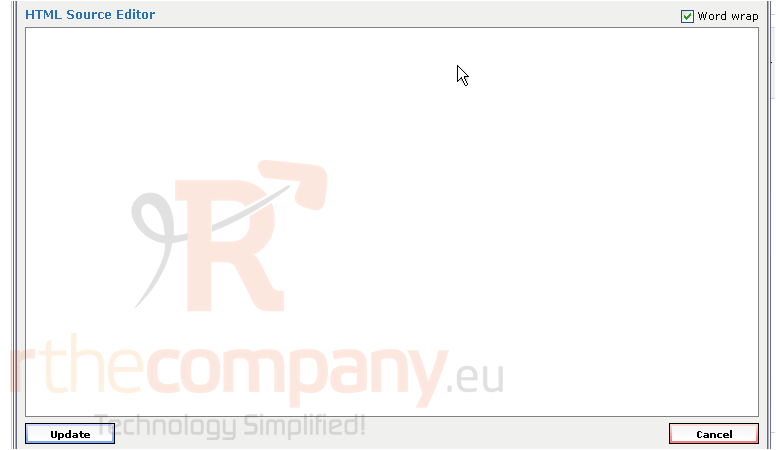
8) Enter your HTML code
9) Click Update
Scroll up
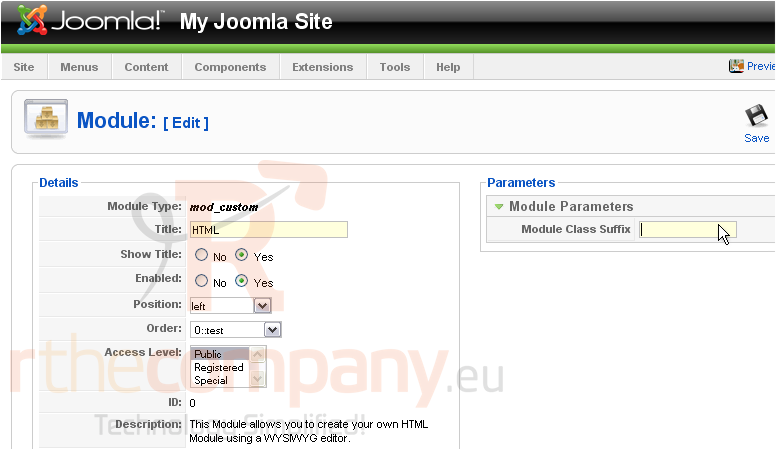
10) Enter the suffix for the CSS class of this module
In this example, the CSS class name of this module would be .module-html
11) Click Save
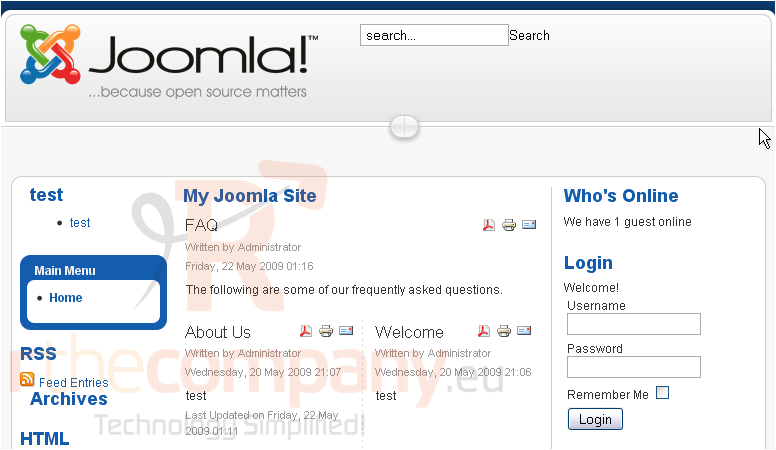
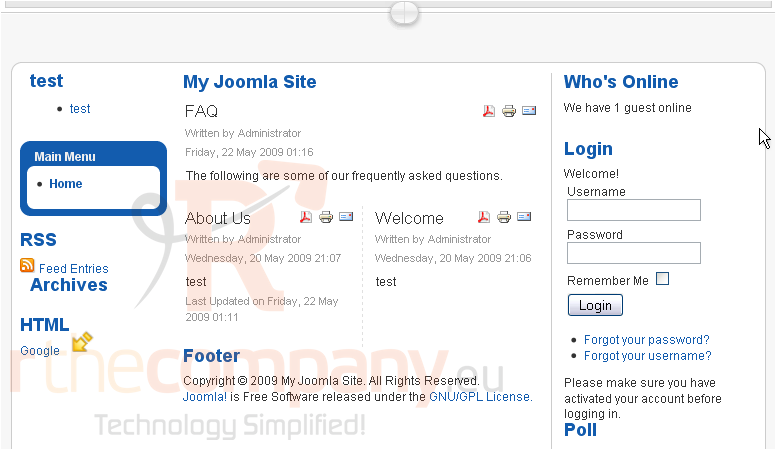
The custom HTML module will now appear on the front-end. Let's go to our Joomla site
Scroll down
Our custom HTML appears here
That's it! You now know how to add custom HTML to your Joomla site
 Add to Favourites
  Print this Article