Головна > База знань > Direct Admin: End-user > 11. How to change your password
11. How to change your password
This demo assumes you've already logged in to Direct Admin
Now let's learn how to change our Direct Admin password.
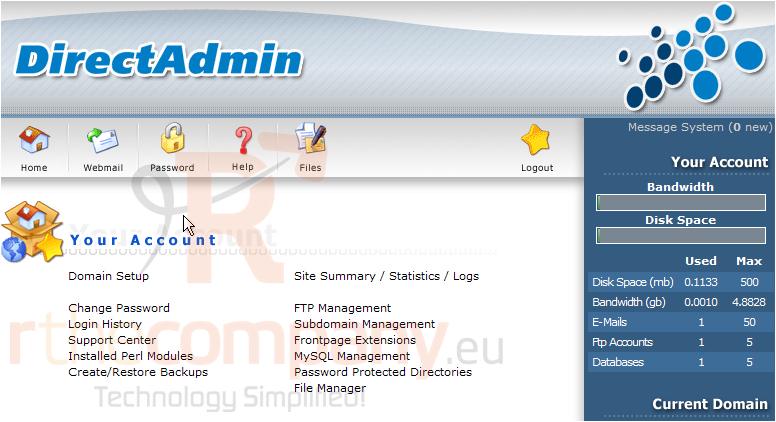
1) Click the Change Password link
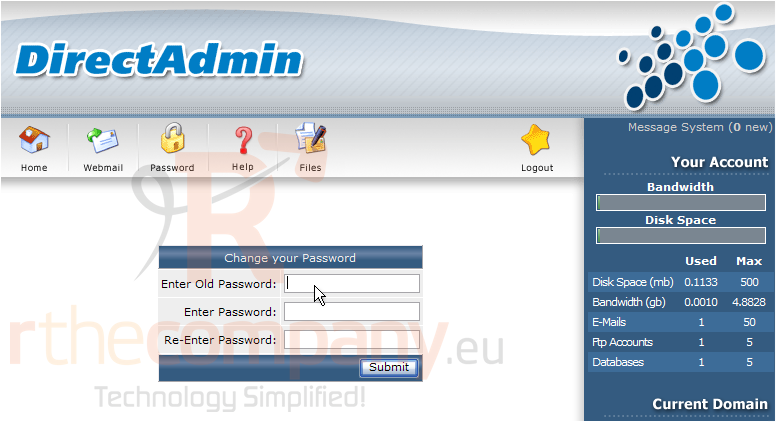
2) This is the Change Password main screen
3) In order to change your Direct Admin password, you first must enter your existing password here
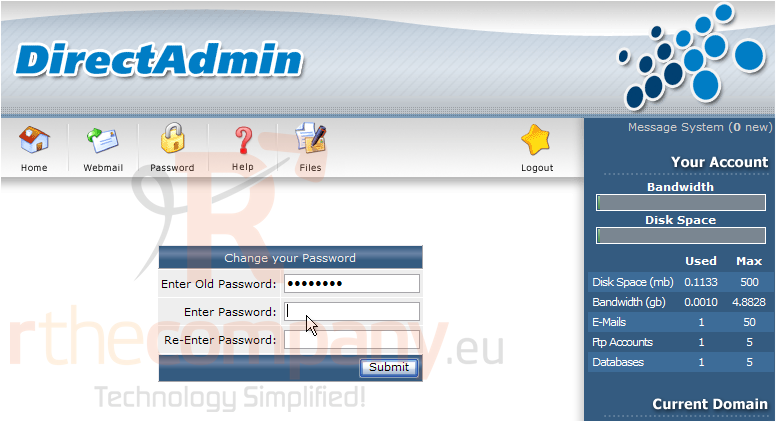
4) Then enter your new password here
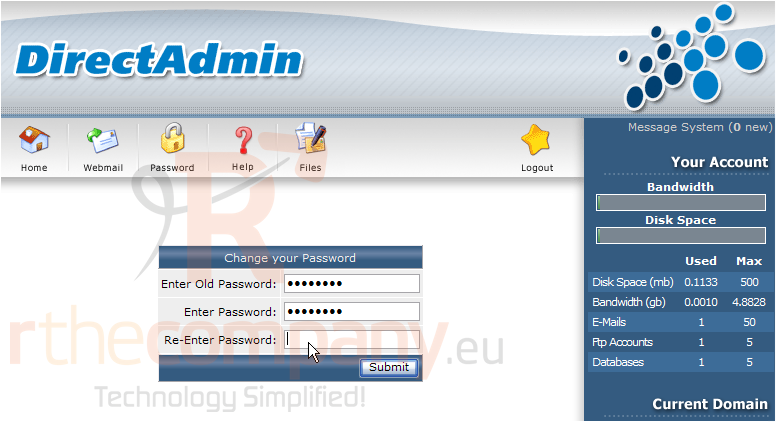
5) ..... and again here
6) When finished, click Submit
That's all there is to it! The password has been changed, and you now must use your new password when logging in to Direct Admin
This is the end of the tutorial. You now know how to change your Direct Admin password. Remember that for security reasons, it's a good idea to change your password often
 Додати до обраного
  Роздрукувати цю статтю