Портал > База знаний > WordPress 3 > 12. How to update your WordPress installation
12. How to update your WordPress installation
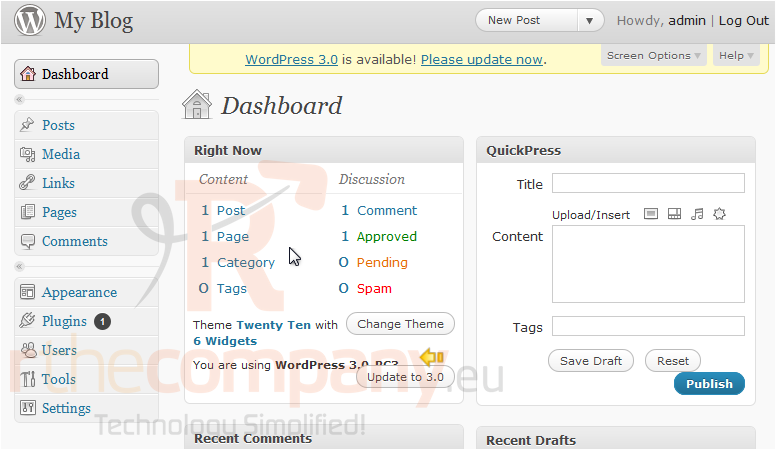
This tutorial will show you how to upgrade your WordPress installation. This tutorial assumes you are already logged in to WordPress. Your current WordPress version is shown where it states "You are using Word Press...."
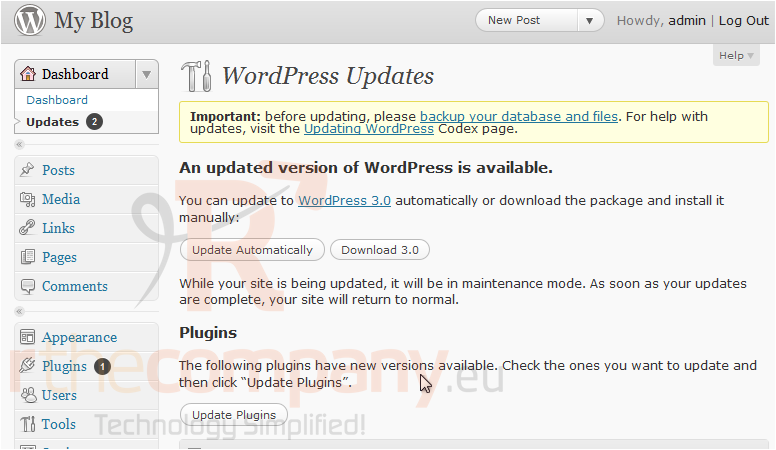
1) Go to Update.
2) Click Update Automatically.
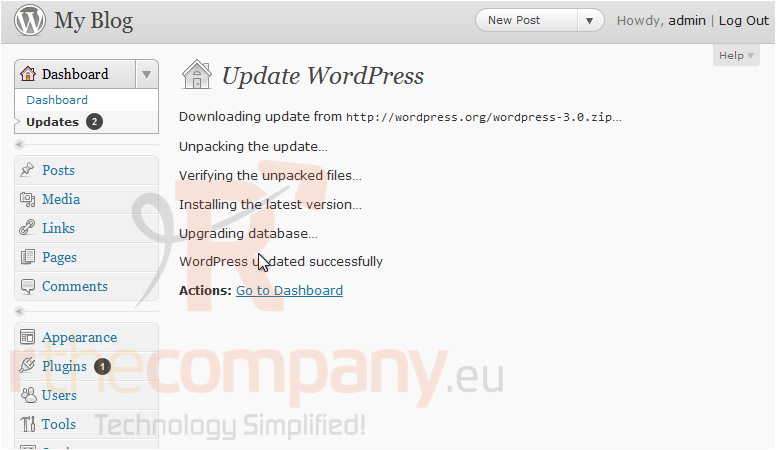
3) The install process can take up to several minutes to complete. Once WordPress has been upgraded, information about the install will show up here. Click Go to Dashboard.
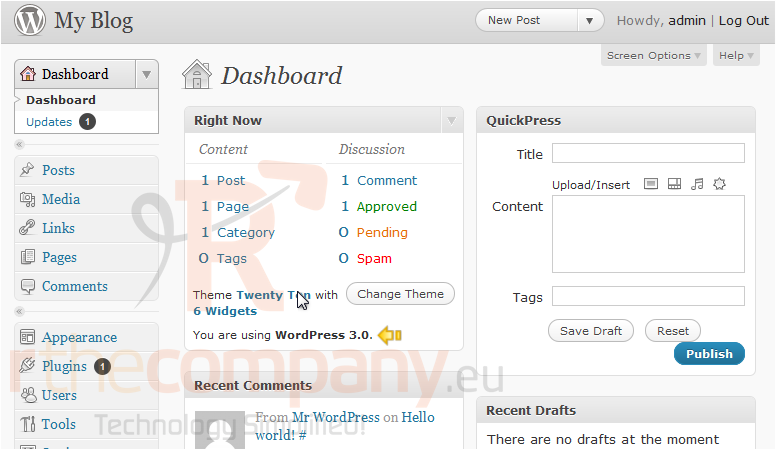
We can now see the current version has changed.
This is the end of the tutorial. You now know how to upgrade your WordPress installation.
 Добавить в избранное
  Распечатать статью