Почетна > База на знаења > CMS Made Simple > 8. How to change the page template in CMS Made Simple
8. How to change the page template in CMS Made Simple
This tutorial assumes you have already logged in to the CMS Made Simple admin console
Now let's learn how to change the page template in CMS Made Simple
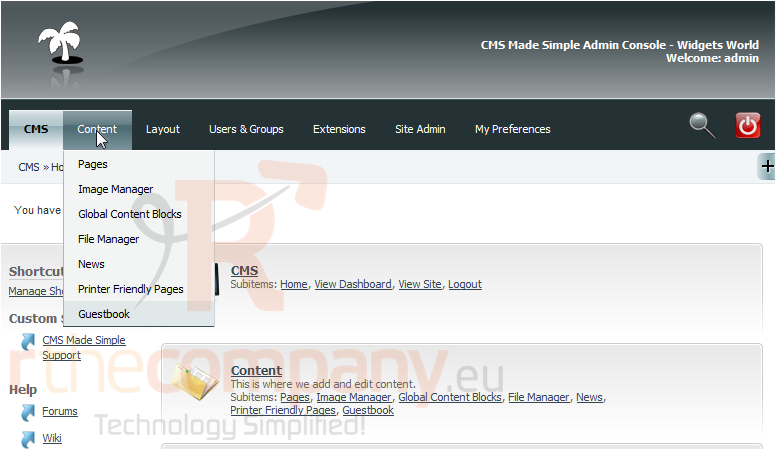
1) Mouse-over Content
2) Click, Pages
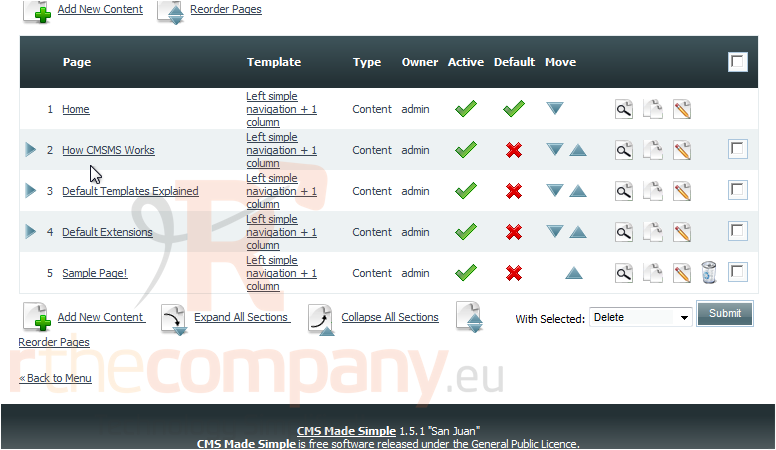
Scroll Down
3) Click on any page listed
Scroll Down
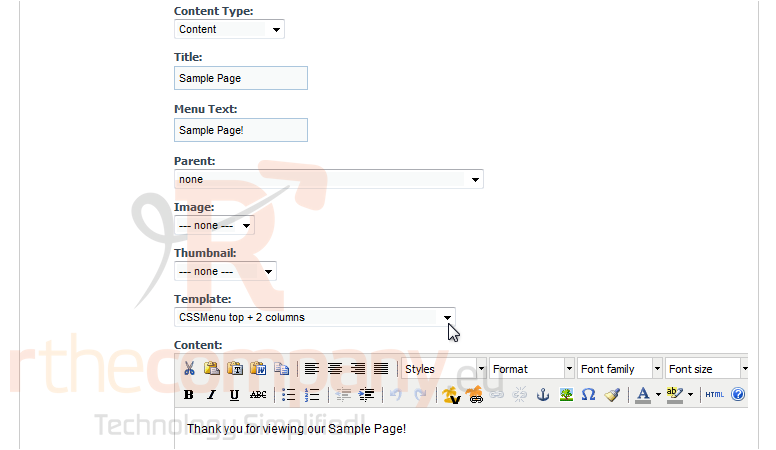
4) Choose the page Template here
Scroll Up
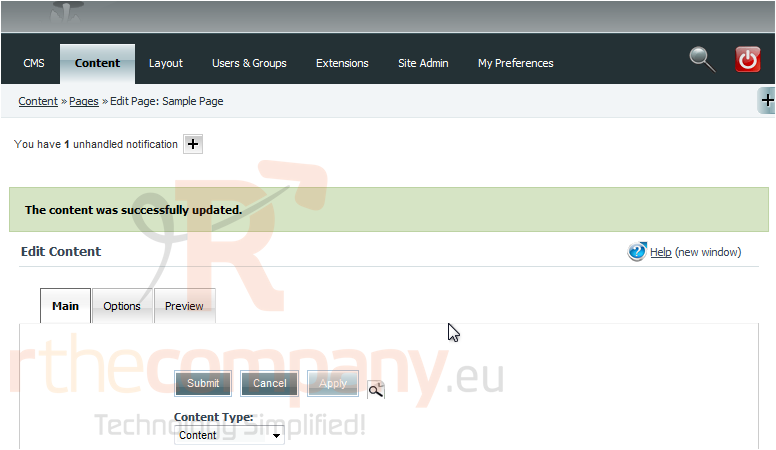
After selecting a new template, CMS Made Simple will automatically save the page
5) Click here, to preview
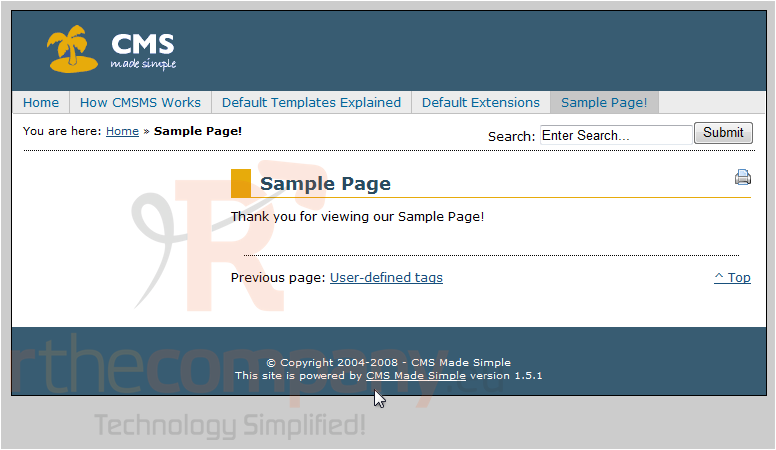
Great! You can see the template has changed
This is the end of the tutorial. You now know how to change a page template within CMS Made Simple
 Додате го во листа на фаворитни прашања
  Испечати