Портал > База знаний > CMS Made Simple > 18. How to import a theme in CMS Made Simple
18. How to import a theme in CMS Made Simple
This tutorial begins on the CMS Made Simple website at www.CMSMadeSimple.org, and assumes you are logged into your CMS Made Simple admin console
Now let's learn how to import a new theme in CMS Made Simple
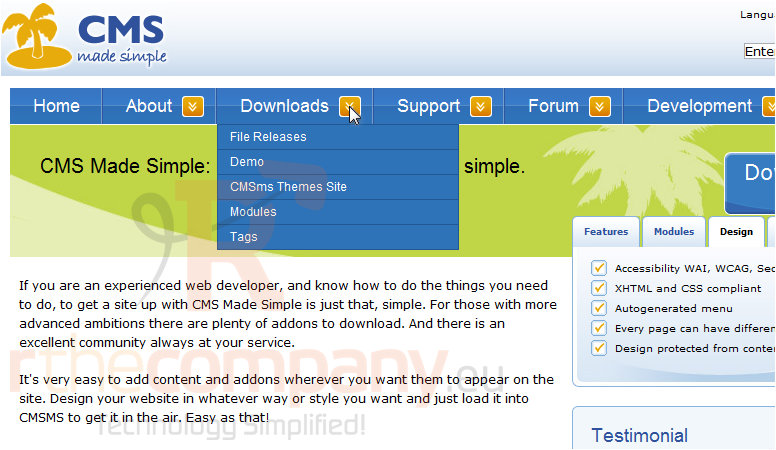
1) Mouse-over Downloads
2) Click, CMSms Themes Site
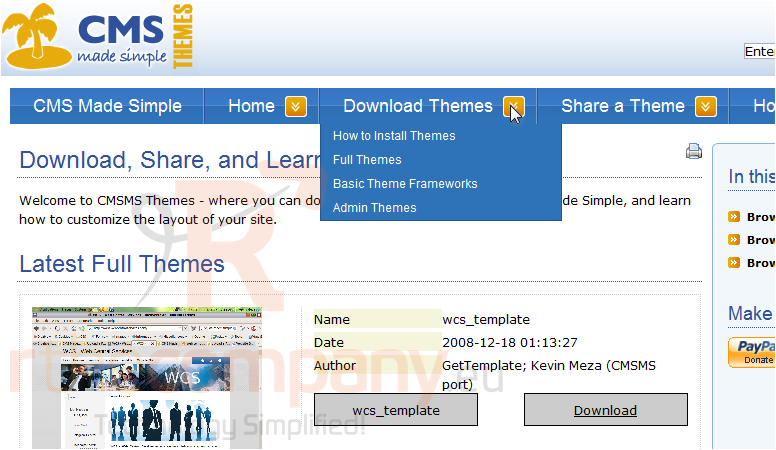
3) Mouse-over Download Themes
4) Click, Full Themes
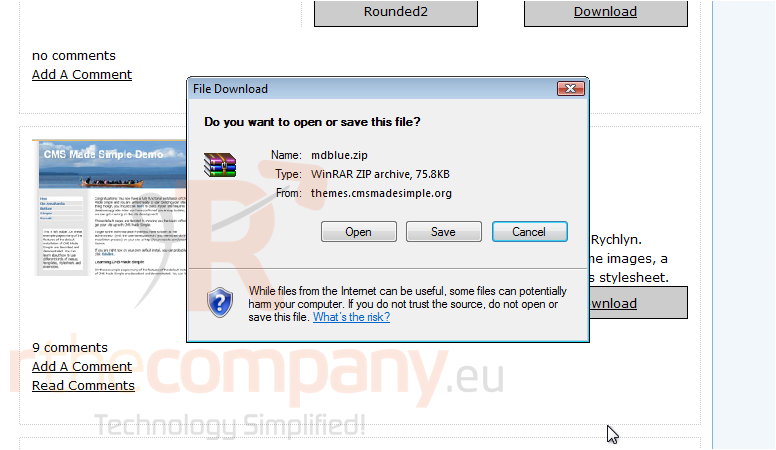
5) Once you have found a desired theme, click Download
6) Click, Save
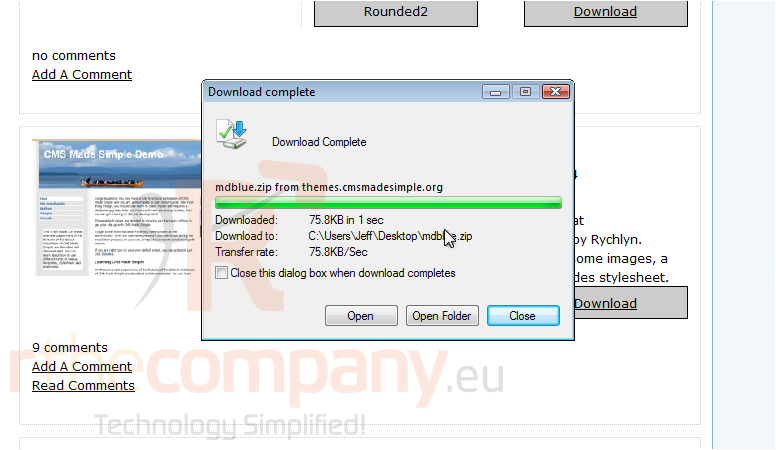
7) Once downloaded, click Close
You have successfully downloaded a theme to your local computer. Now, lets go to the CMS Made Simple Admin Panel to import
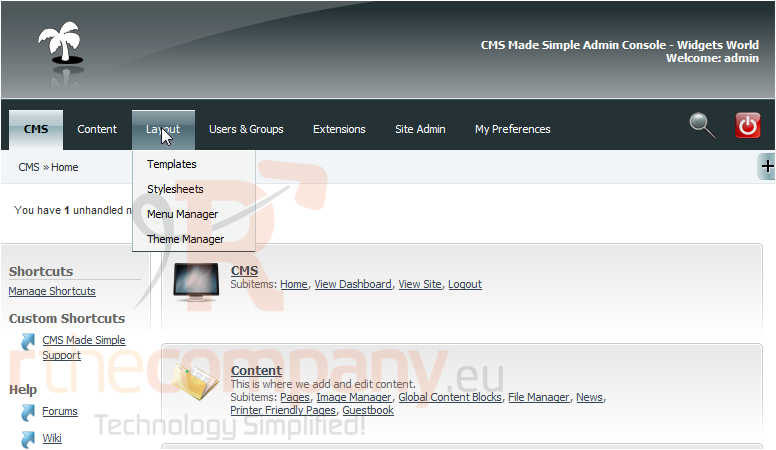
8) Mouse-over, Layout
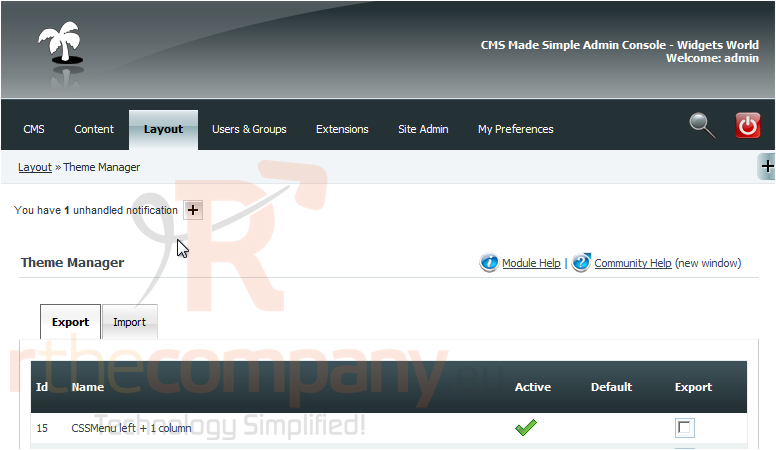
9) Click, Theme Manager
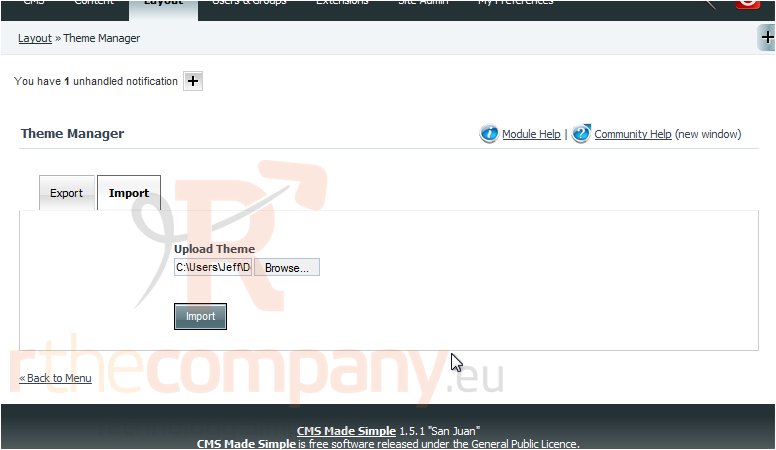
10) Click, Import
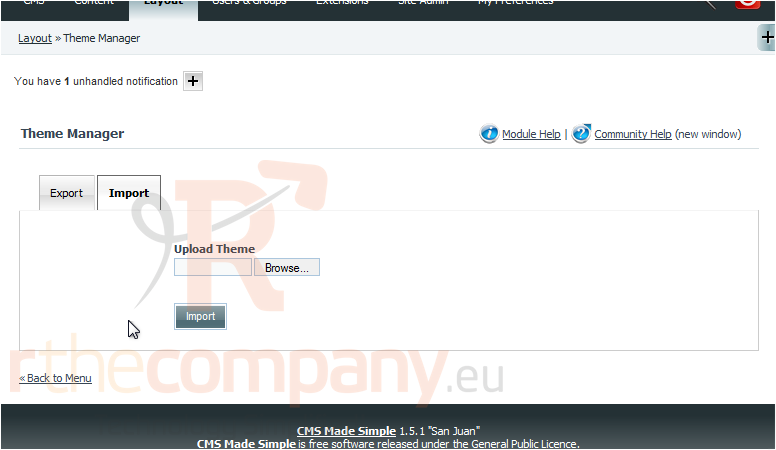
11) Click, Browse to locate the file on your local computer
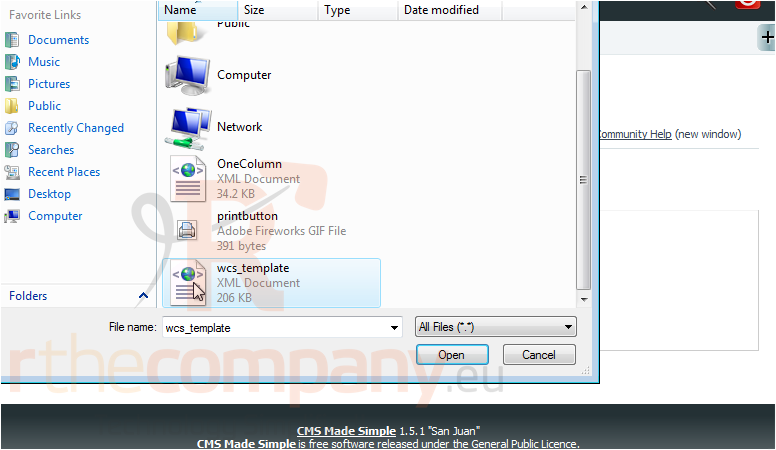
12) Click on the theme file
13) Now, click Open
14) Once finished, click Import
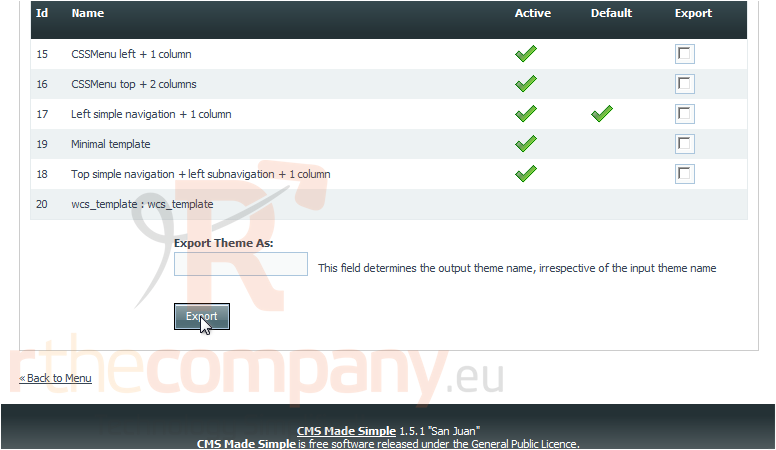
You can see the newly uploaded theme here
This is the end of the tutorial. You now know how to download and upload a theme within CMS Made Simple
 Добавить в избранное
  Распечатать статью