פורטל ראשי > מאגר מידע > Joomla: Admin > 14. How to check-in locked items in Joomla
14. How to check-in locked items in Joomla
This tutorial assumes you are already logged in to your Joomla admin panel
While a user is editing a file, the status is changed to checked out. Only the user who checked out the file can edit it until it is checked back in. This prevents 2 users from editing the same file at the same time, which prevents the loss of data when saving
However, sometimes there may be a connection error, such as when the user presses the back button on their browser before saving their changes. The item will remain checked out and won't allow anyone to edit it
In this case, a Super Administrator can use the global check-in feature to unlock all locked articles across the website
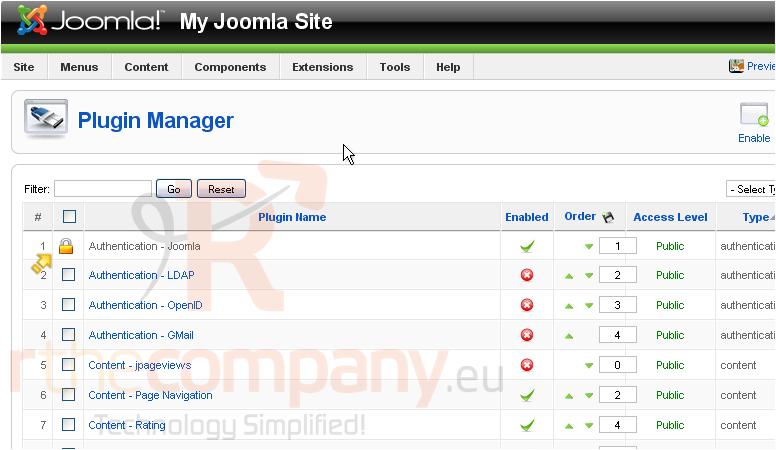
Let's see what a locked article looks like
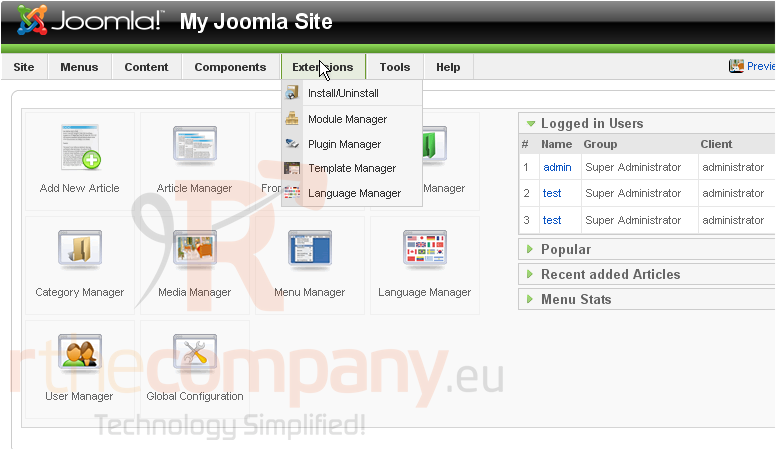
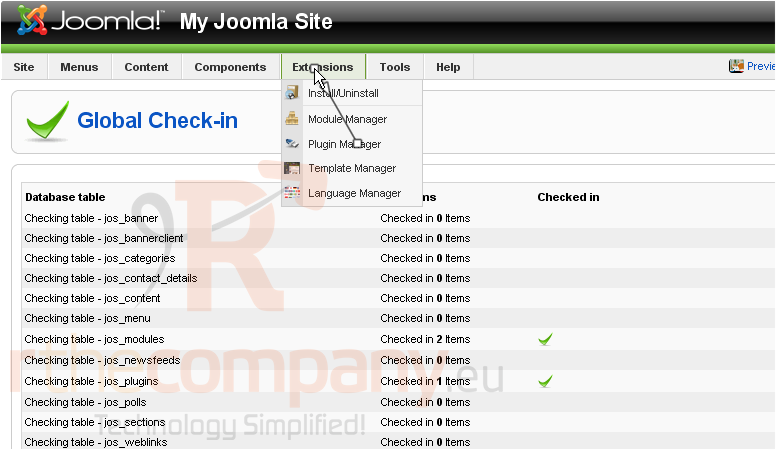
1) Click Extensions
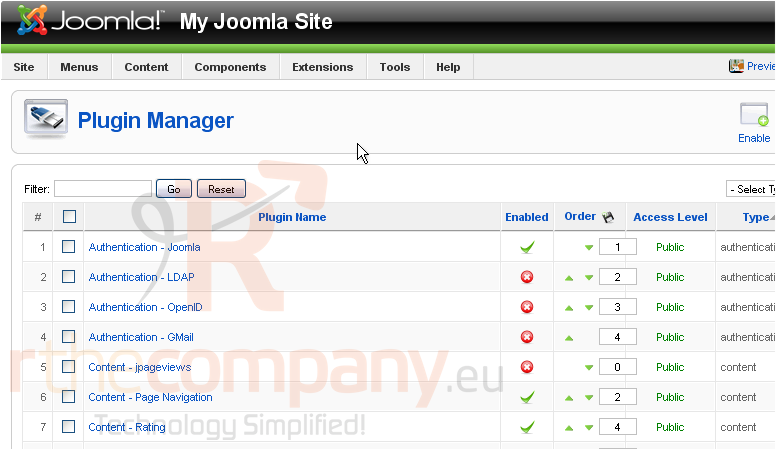
2) And go to Plugin Manager
Locked items will have this padlock next to them
Let's check-in all locked items now
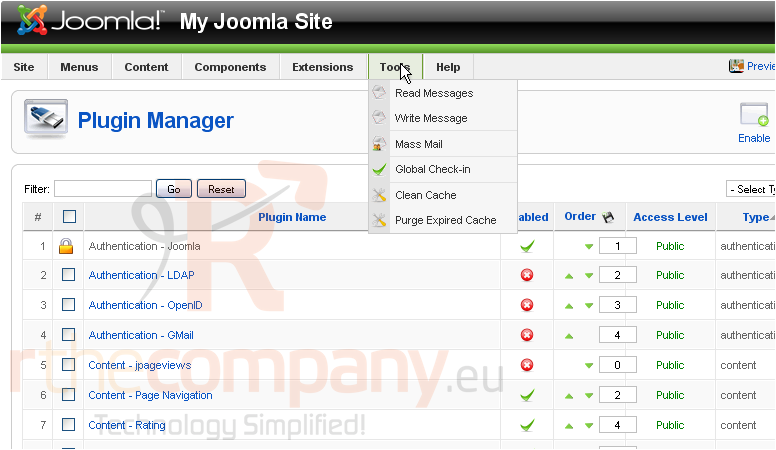
3) Go to Tools
4) Then click Global Check-In
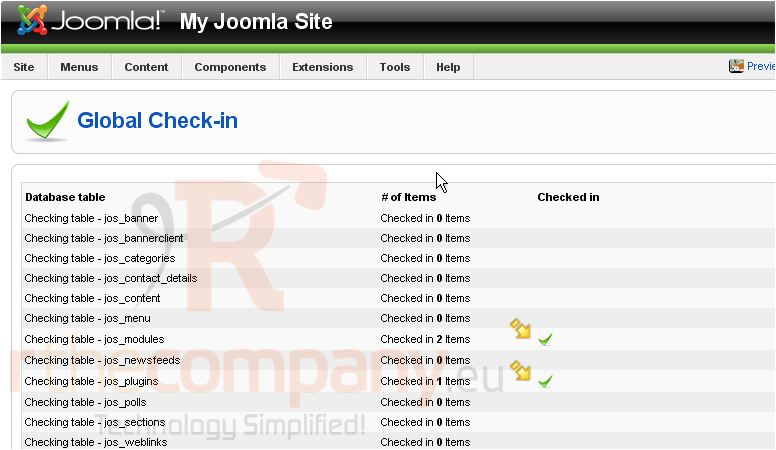
All items that were locked will have a green checkmark
5) Let's go back to the item that was locked
Notice there is no longer a padlock next to the item which means that it is unlocked and can be edited
That's it! You now know how to check-in locked items in Joomla