Почетна > База на знаења > Joomla CMS > 8. How to use the Menu Manager in Joomla
8. How to use the Menu Manager in Joomla
This tutorial assumes you are already logged in to your Joomla admin panel
The Menu Manager allows you to create custom menus for your Joomla site
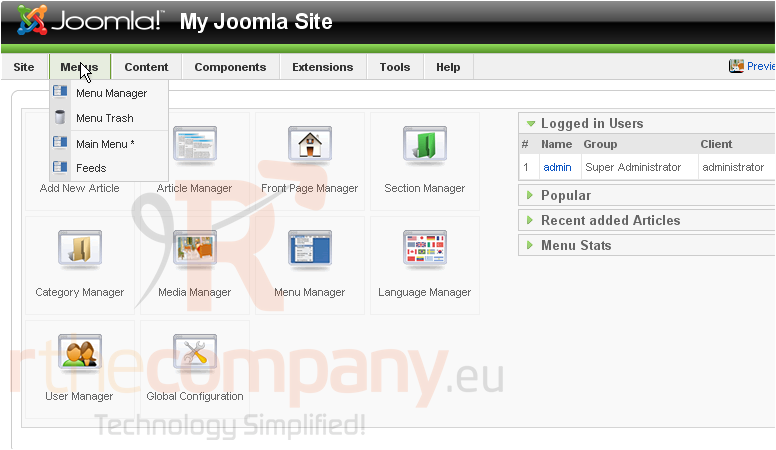
1) Click Menus
2) Then Menu Manager
Let's create a new menu
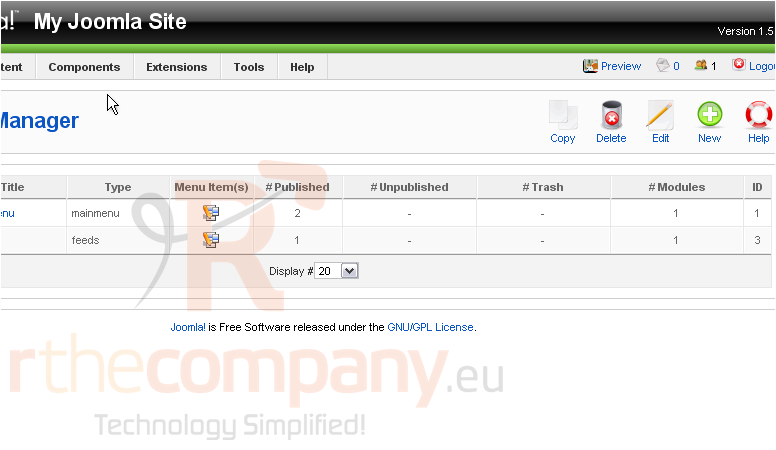
Scroll right
3) Click New
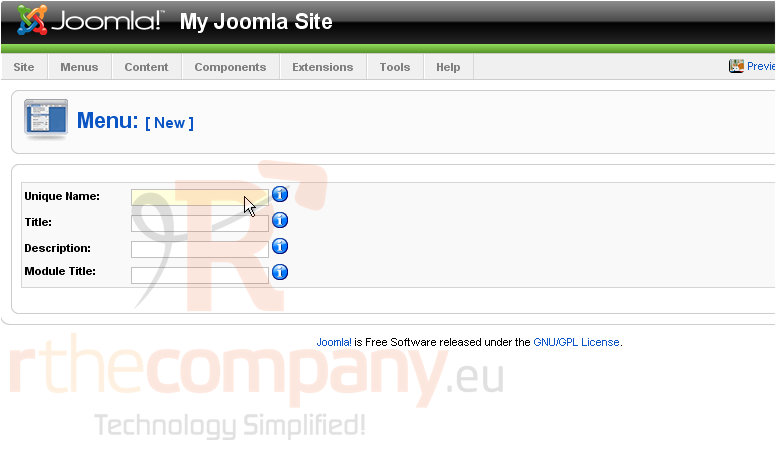
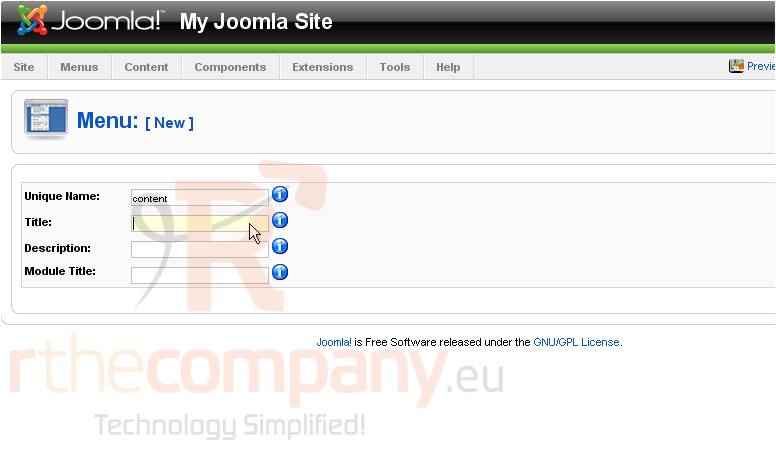
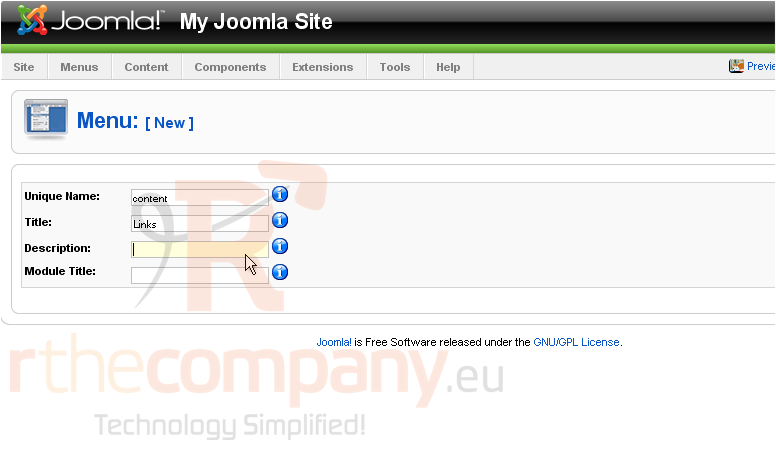
The Unique Name is what Joomla uses to identify this module within the code
4) Enter a Title
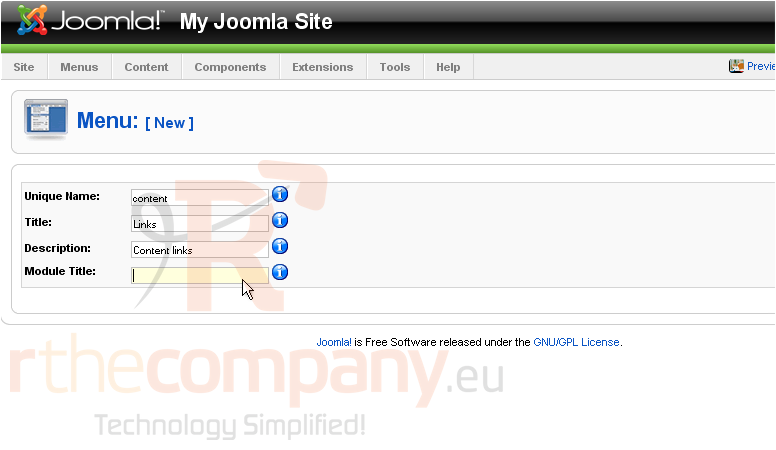
5) Type a Description
The Module Title is what will display on the front-end. If this field is left blank, the module will not be created
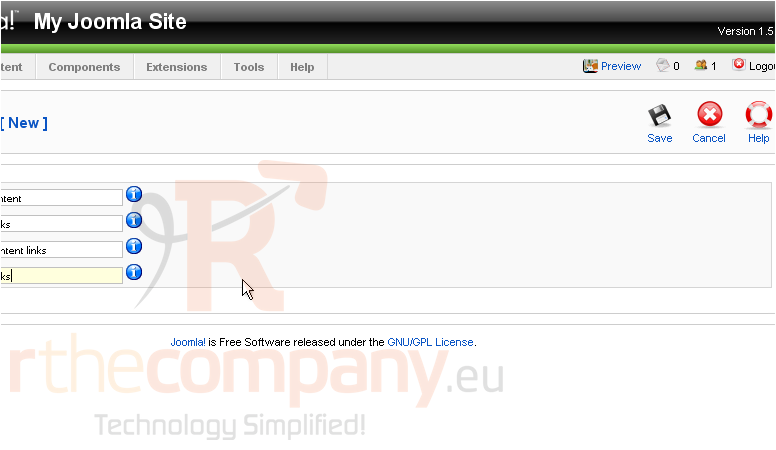
Scroll right
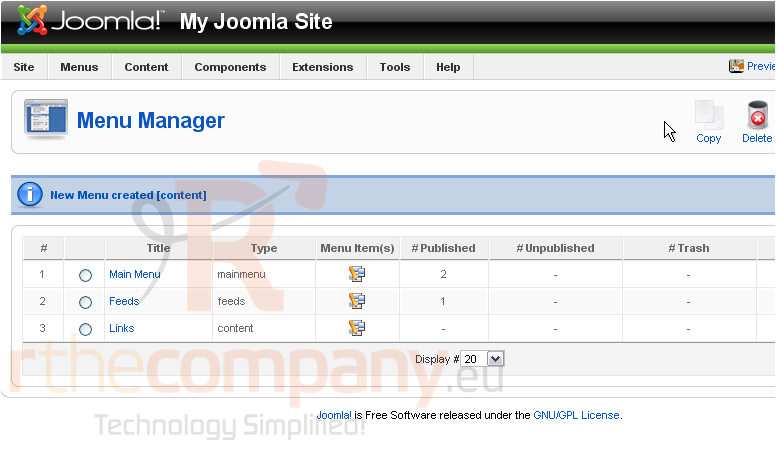
6) Click Save
7) Click this icon to edit the menu contents
Scroll right
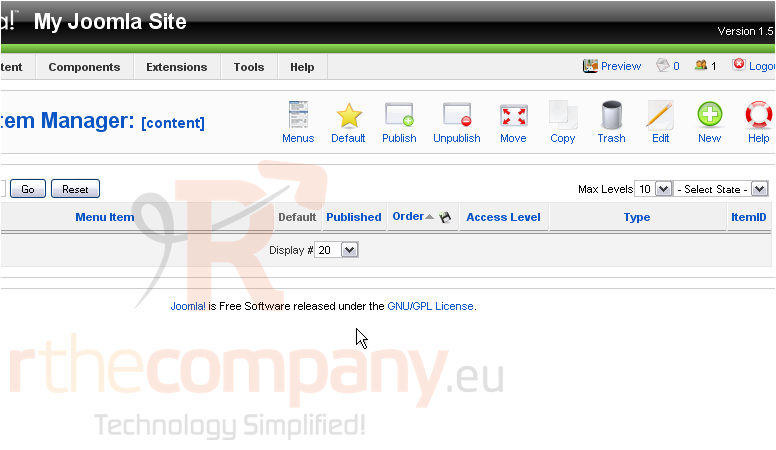
8) Click New
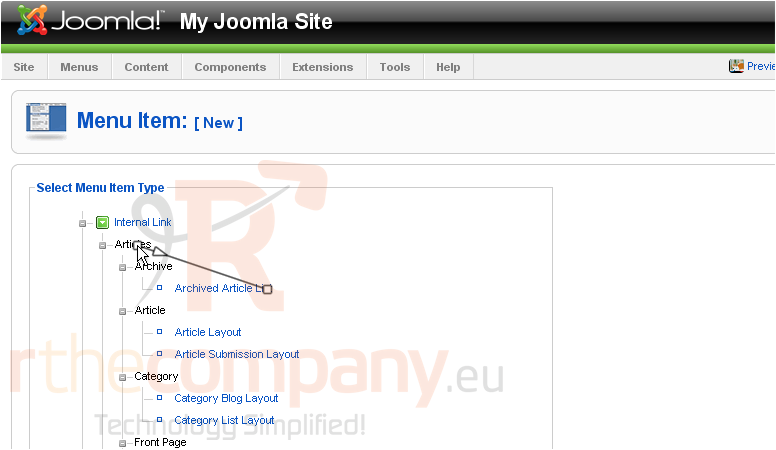
9) Select the Menu Item Type from the list
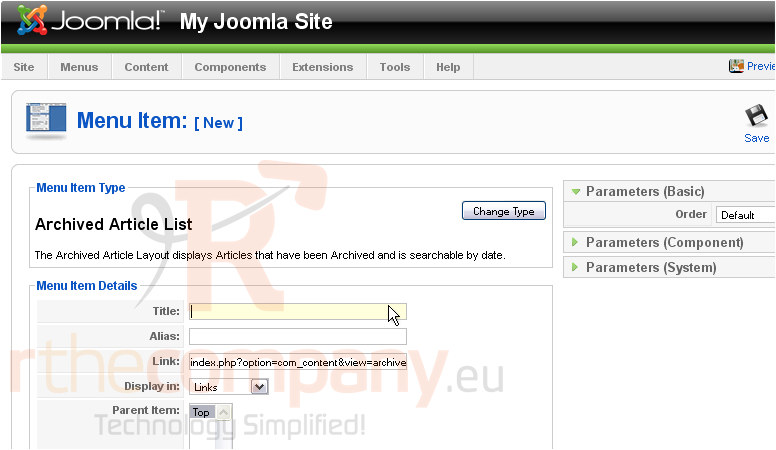
10) Enter a Title
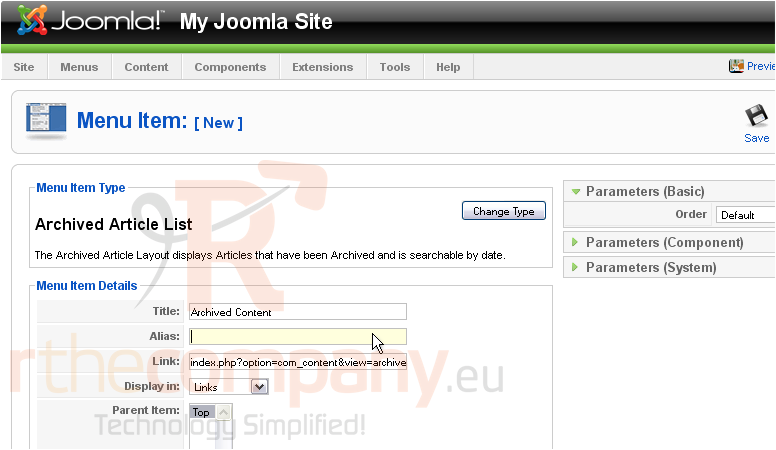
The Alias is an internal name that Joomla uses in the URL if SEF is enabled
Entering an alias is optional; and, if left blank, Joomla will create a default one by automatically converting the title to lowercase and replacing any spaces with a hyphen
However, you may manually enter an alias, if desired
11) Click Save
The last thing to do after creating a new menu is to enable it in the module list
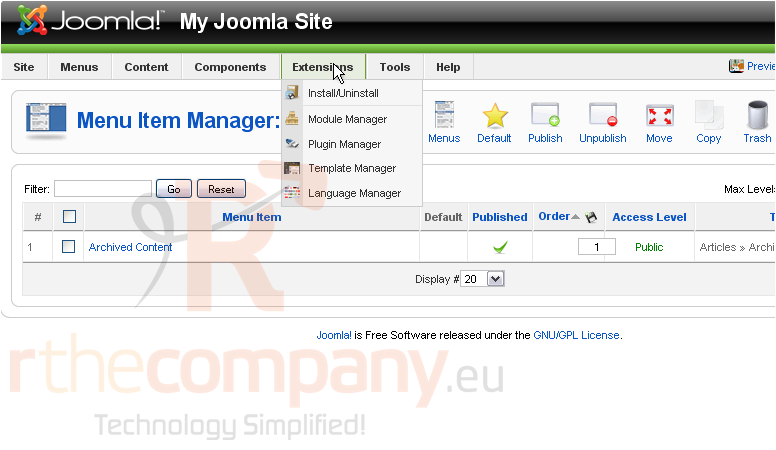
12) Click Extensions
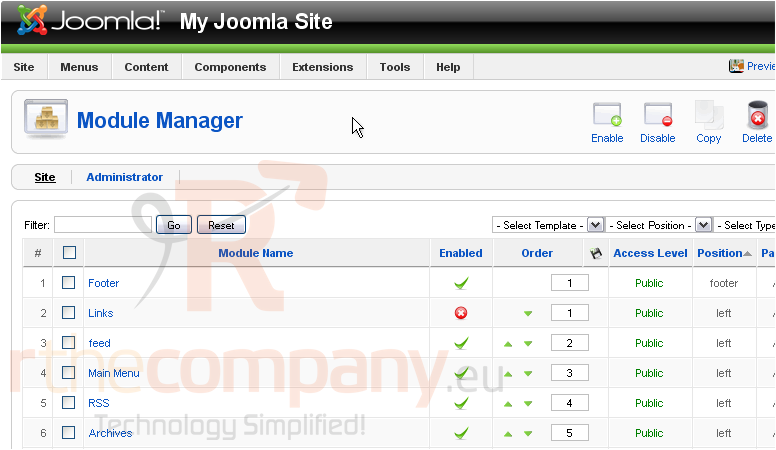
13) Click Module Manager
14) Click the red X icon next to the menu item
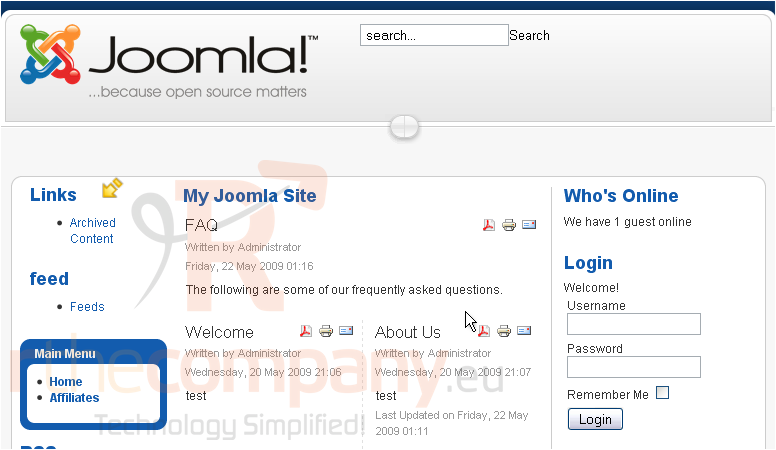
The new menu can now be viewed on the front-end. Let's go there now
Here it is
That's it! You now know how to use the Menu Manager in Joomla
 Додате го во листа на фаворитни прашања
  Испечати