Головна > База знань > ZenCart > 4. How to add categories to your store in ZenCart
4. How to add categories to your store in ZenCart
This tutorial assumes you've already logged in to Zen Cart
Now let's learn how to add categories to your store
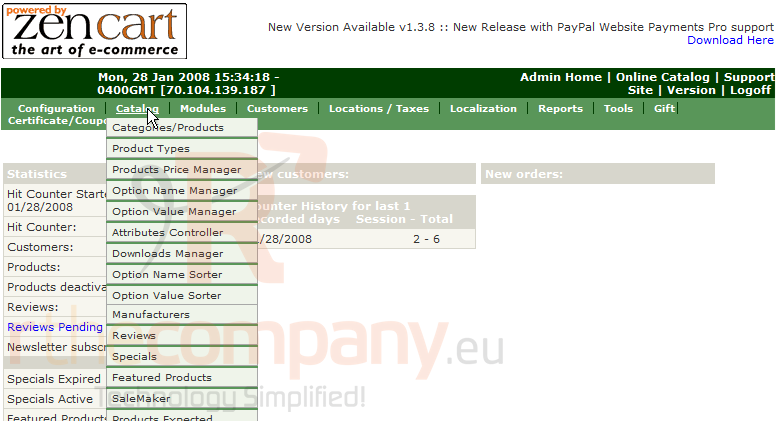
1) Place the cursor over Catalog
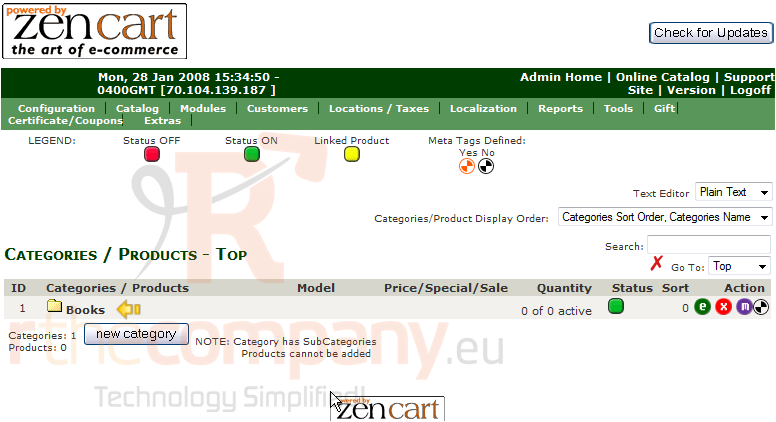
2) Click Categories/Products
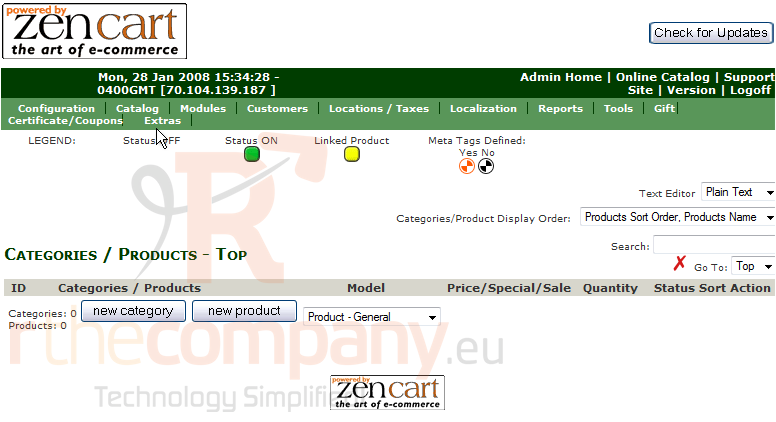
3) Click New Category
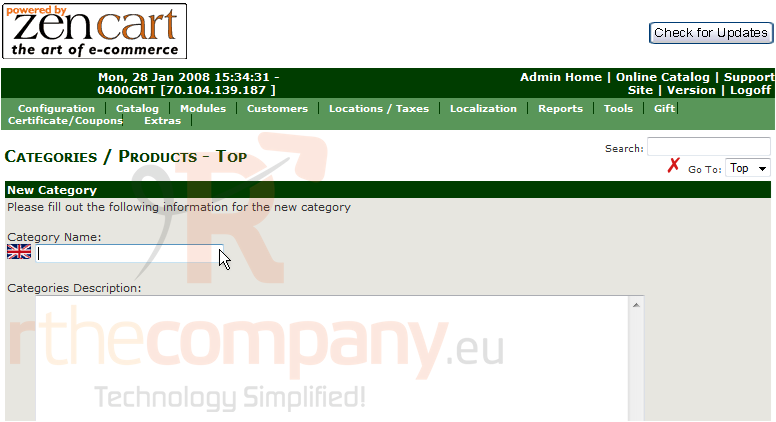
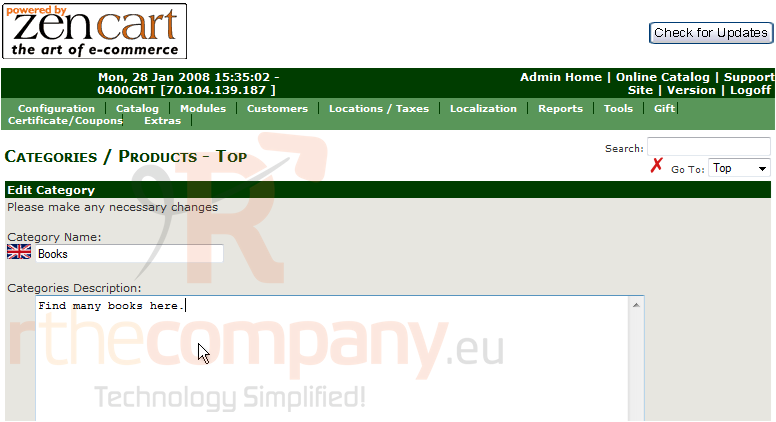
4) Enter a Category Name here
5) Enter a description for the category here
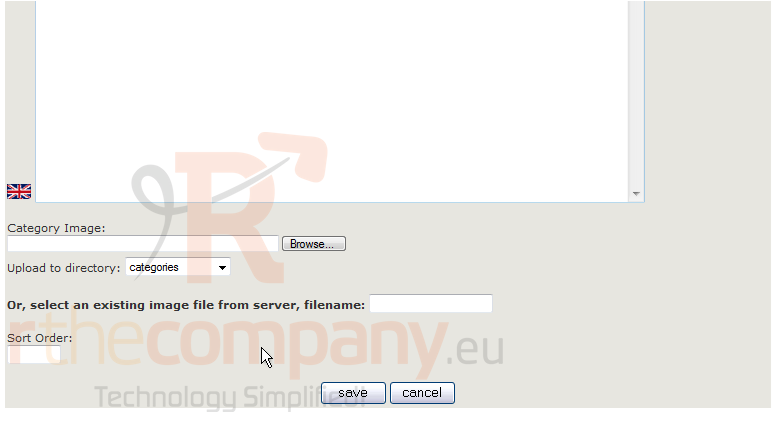
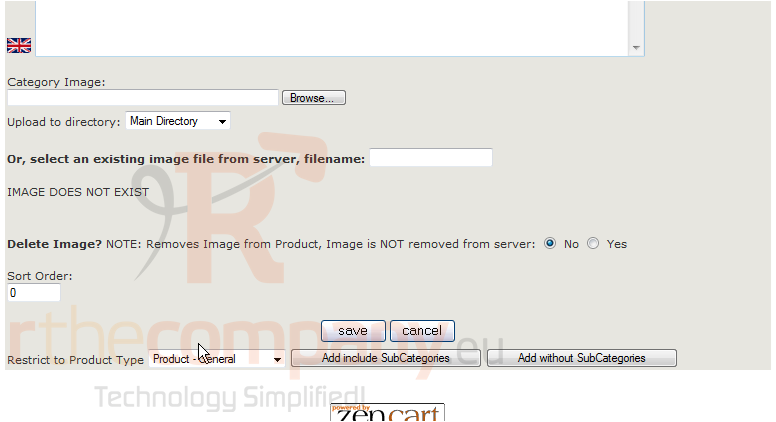
6) Click Save
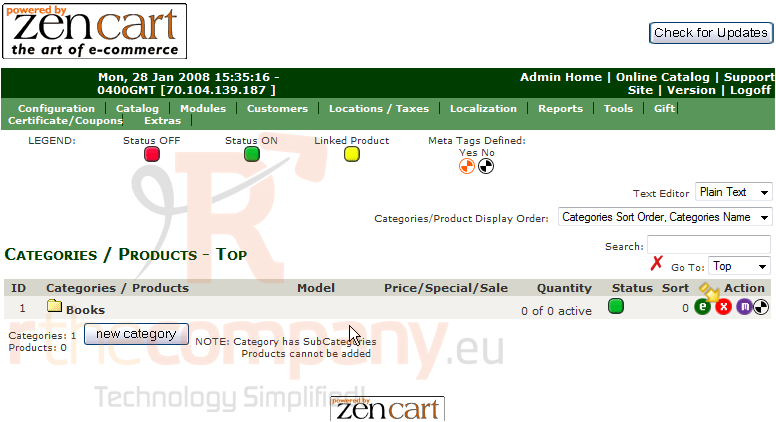
That's it! The category has been added as can be seen here
7) Click here to edit the category
8) Modify the description of the category here
9) Click Save
That's it! The category has been edited. If we wish to delete this category in the future we would click here
This is the end of the tutorial. You should now know how to add categories to your store in Zen Cart
 Додати до обраного
  Роздрукувати цю статтю