Почетна > База на знаења > ZenCart > 12. How to send out a newsletter in ZenCart
12. How to send out a newsletter in ZenCart
This tutorial assumes you've already logged in to Zen Cart
Now let's learn how to send out a newsletter
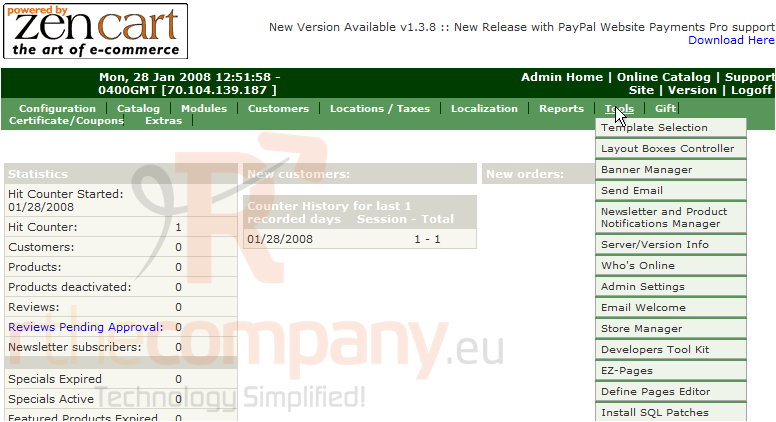
1) Place the cursor over Tools
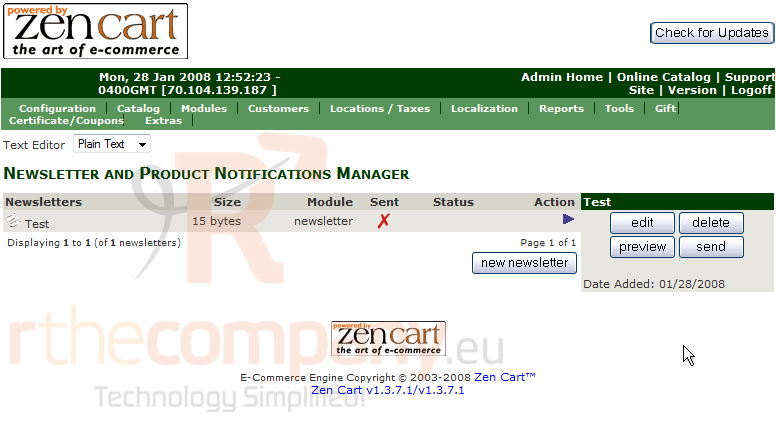
2) Click Newsletter and Product Notifications Manager
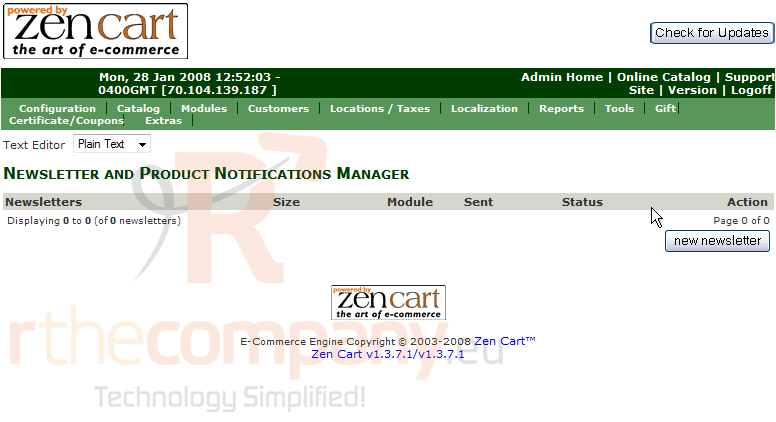
3) Click New Newsletter
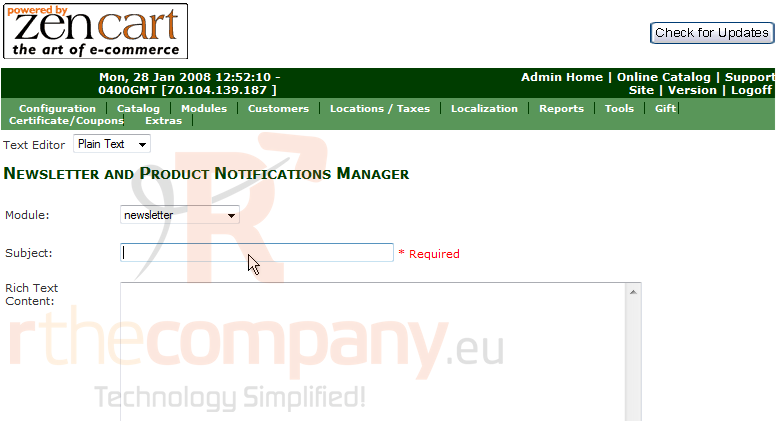
4) Enter the Subject of the Newsletter here
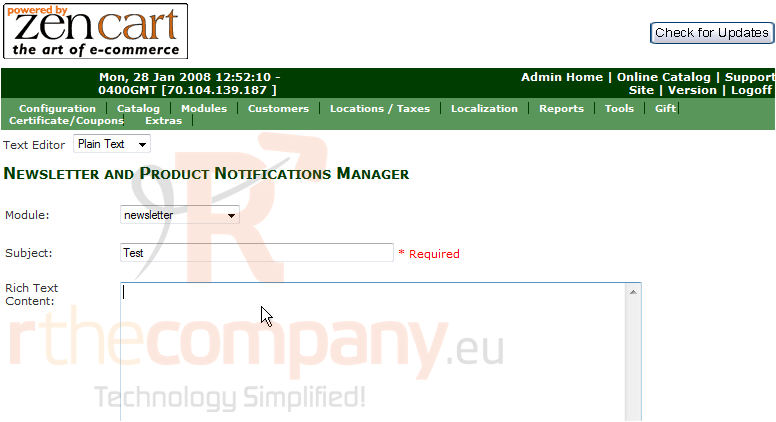
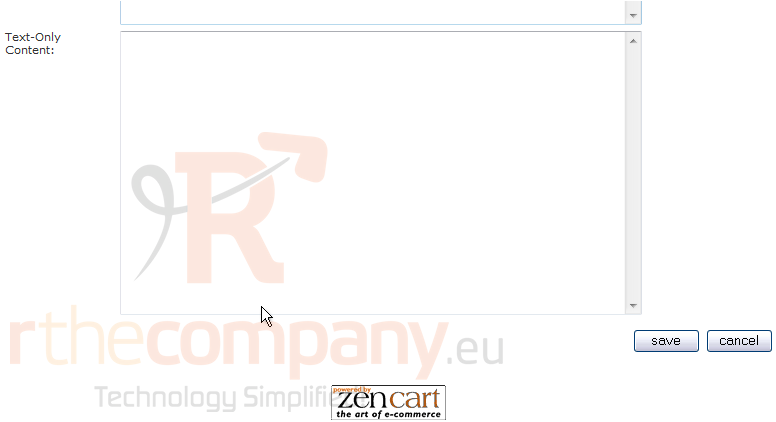
5) Enter the body of the newsletter here
6) Click Save
7) Click Send
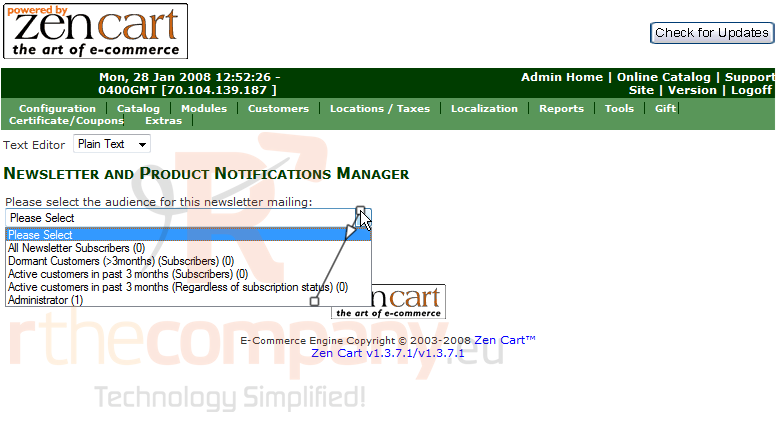
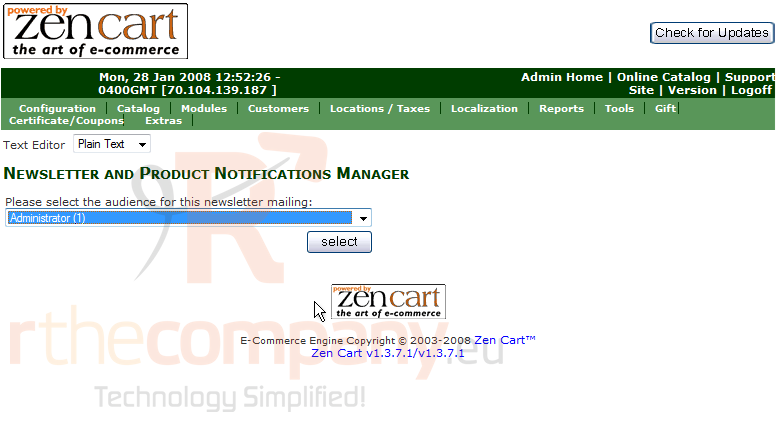
8) Select who will receive the newsletter here
9) Click Select
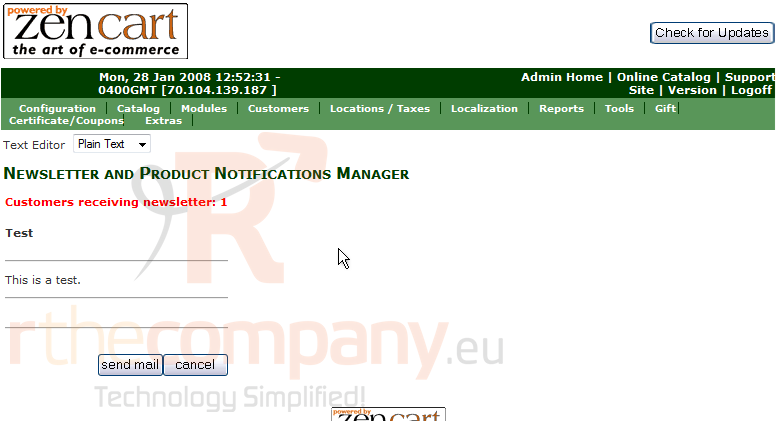
10) Click Send Email
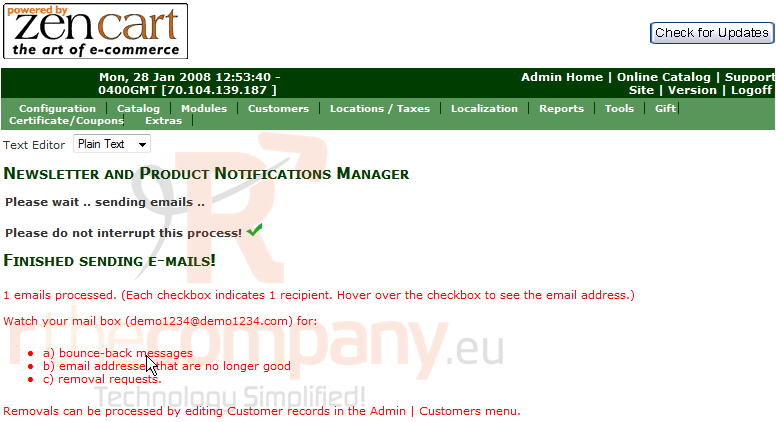
That's it! The newsletter has been sent
This is the end of the tutorial. You should now know how to send out a newsletter in Zen Cart
 Додате го во листа на фаворитни прашања
  Испечати