客戶系統 > 知識庫 > phpMyAdmin > 7. Exporting databases and tables with phpMyAdmin
7. Exporting databases and tables with phpMyAdmin
This tutorial assumes you've already logged in to phpMyAdmin
Now let's learn how to export a database
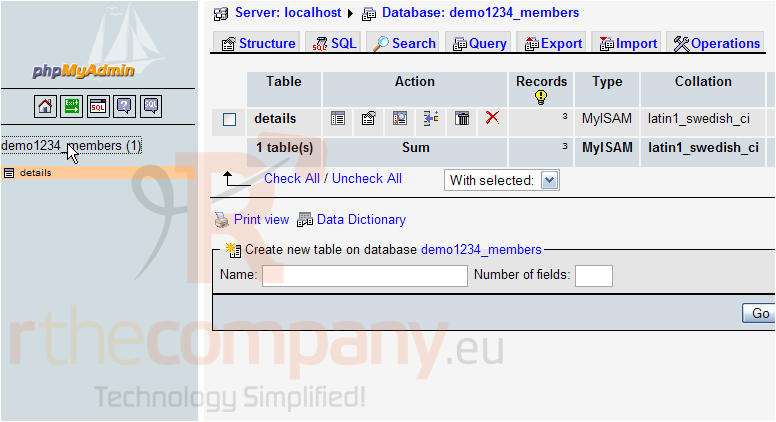
Click the database you wish to export here
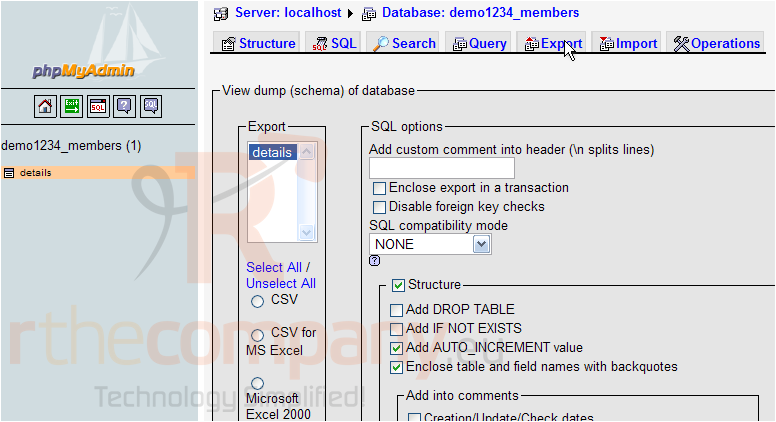
Then click the Export button
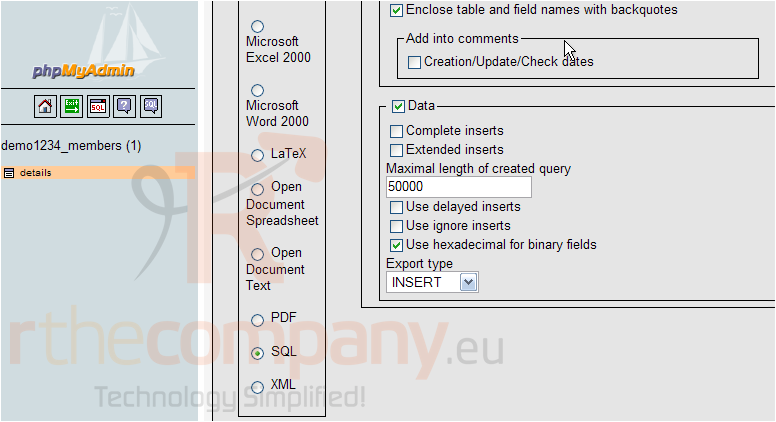
In this case, we want to export the entire database in SQL format, so we can easily import it later. This is a good way to backup your database
Be sure to check any options you want before proceeding
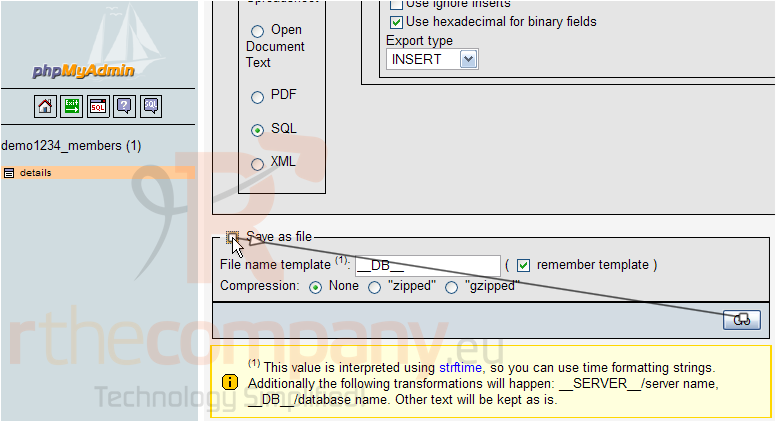
Check the Save as File checkbox, then click Go
That's it! The demo1234_members database has been exported to our local computer
If you only wanted to export a table, and not the entire database, follow these steps
Remember that exporting tables only exports the selected tables within a database, whereas exporting a database will export all tables as well (provided they're all selected)
That's it! The details table has been exported to its own file
This is the end of the tutorial. You now know how to export databases and tables using phpMyAdmin