Головна > База знань > osCommerce > 11. How to setup special promotions in osCommerce
11. How to setup special promotions in osCommerce
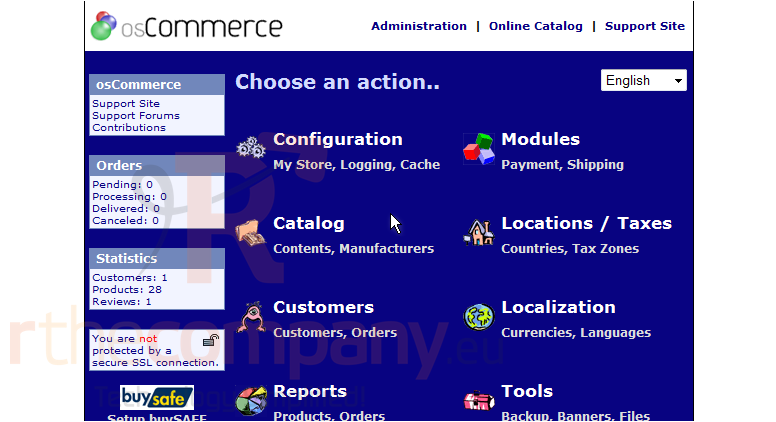
This tutorial assumes you've already logged in to osCommerce
Now let's learn how to setup special promotions
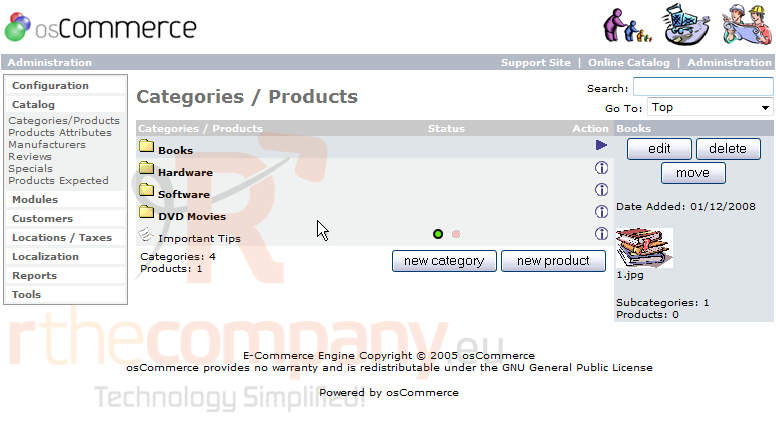
1) Click Catalog
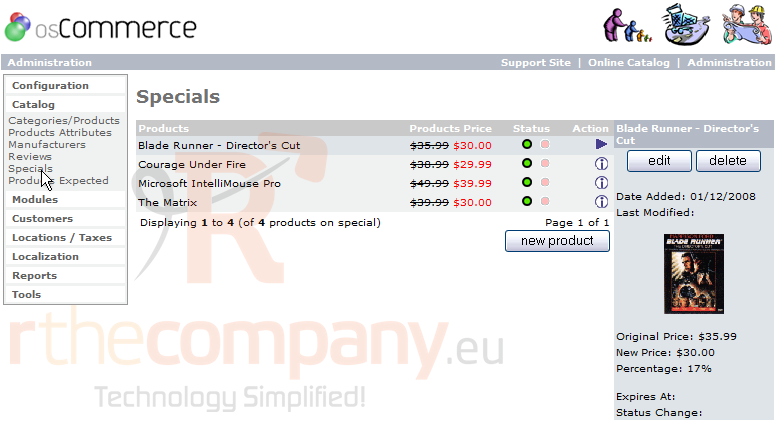
2) Then click Specials
3) Click New Product
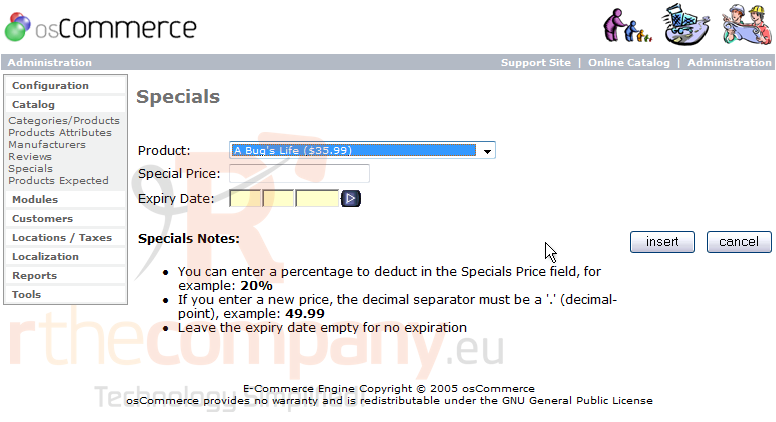
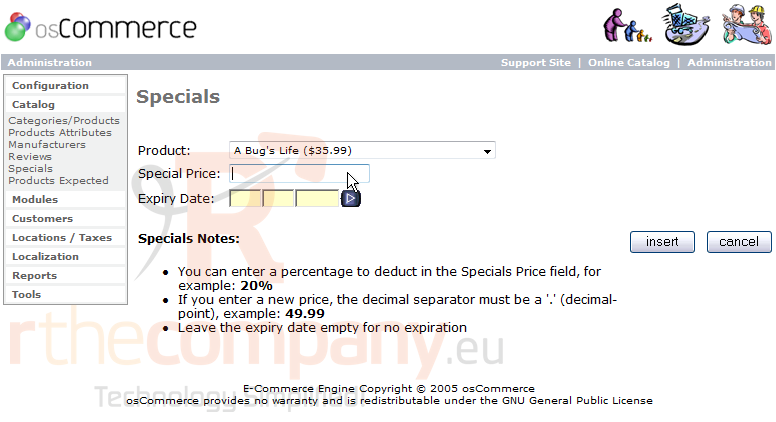
4) Select the product you want to create a special promotion for...
5) ... then enter a Special Price for the product
You can enter an expiry date... or just leave blank to have no expiry date
6) Click Insert
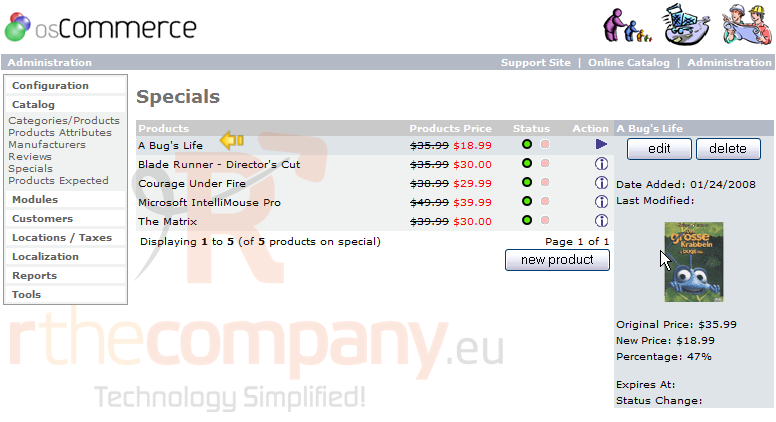
That's it! The special has been added and can be seen here
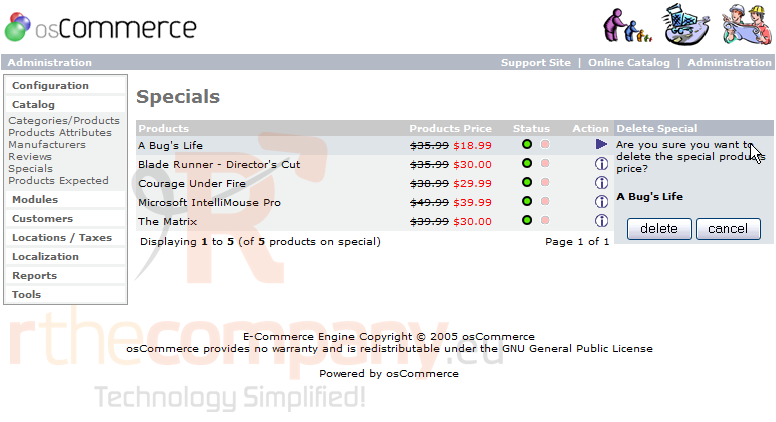
7) Now let's delete the new special, click Delete
8) Click Delete again
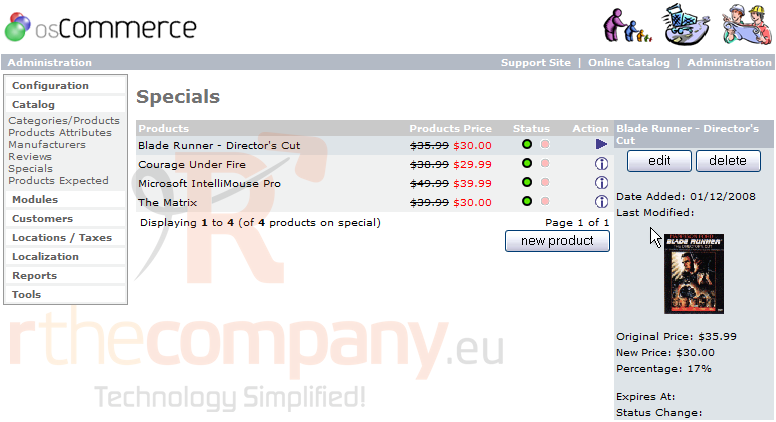
That's it! The special we added has now been deleted
You can add as many special promotions as you like, and can edit or delete them from this page as well
This is the end of the tutorial. You now know how to setup special promotions in osCommerce
 Додати до обраного
  Роздрукувати цю статтю