Suporte > Base de Conhecimento > osCommerce > 10. How to change tax rates in osCommerce
10. How to change tax rates in osCommerce
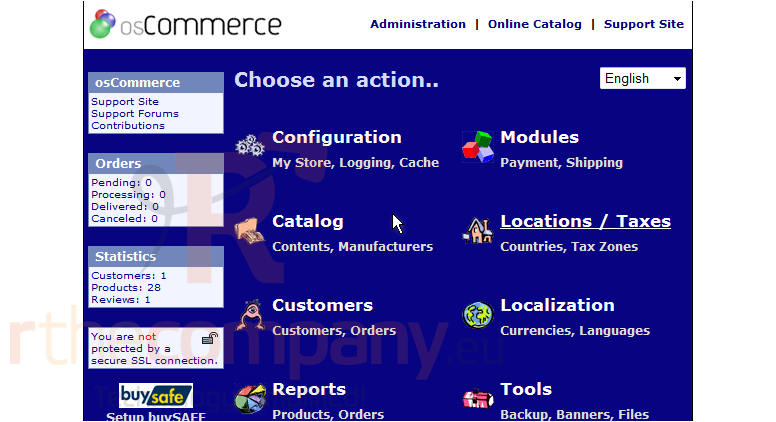
This tutorial assumes you've already logged in to osCommerce
Now let's learn how to change tax rates
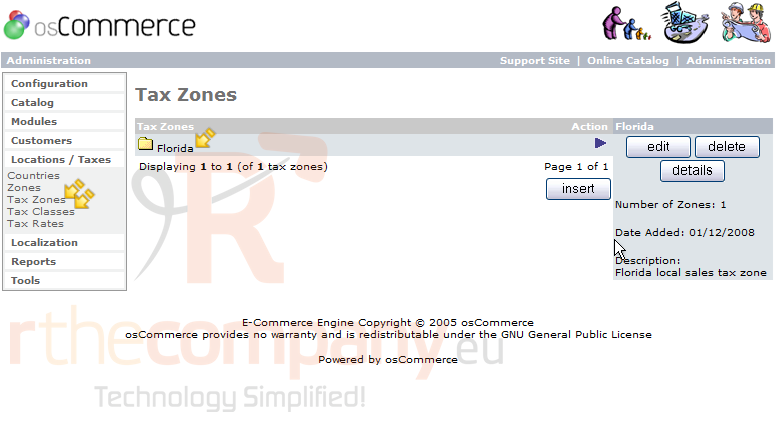
1) Click Tax Zones
This is the Tax Zones page where you can see a tax zone for Florida has already been setup. You can setup additional tax zones and classes by clicking the Tax Zones or Tax Classes links here
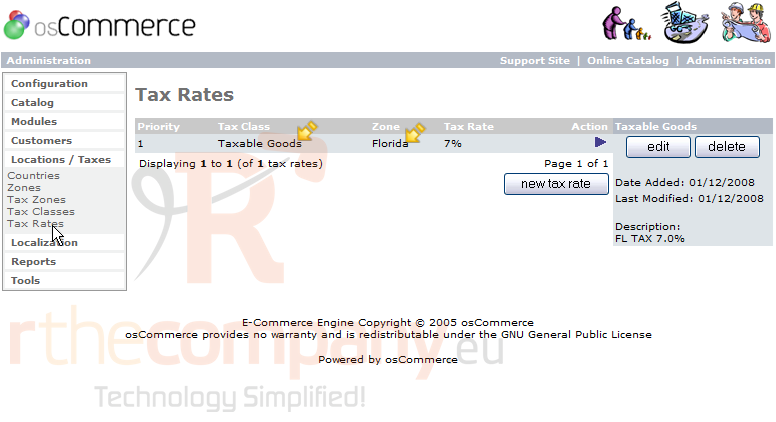
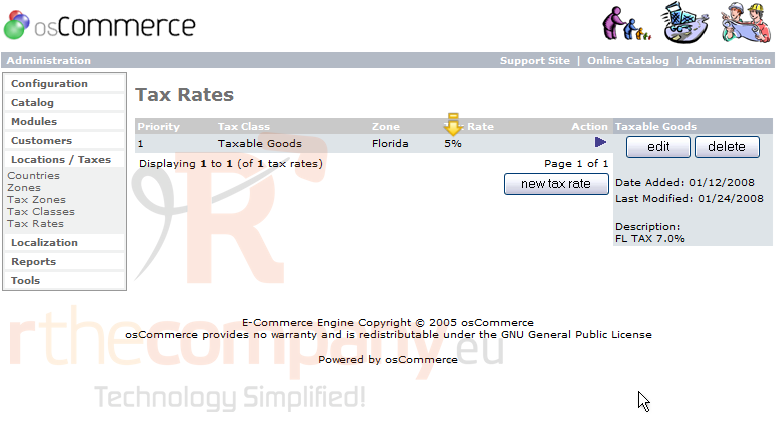
2) We're going to configure a tax rate. Click Tax Rates
3) With the Taxable Goods tax class for the Florida tax zone selected, click Edit
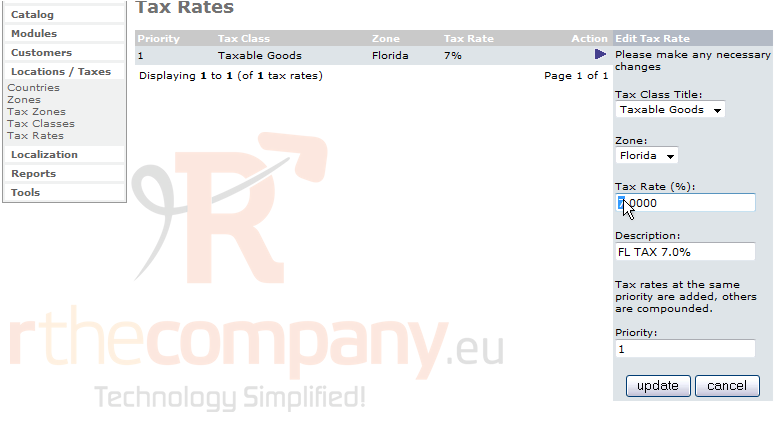
4) Enter a new Tax Rate here
5) Then click Update
That's it! The tax rate has been changed as can be seen here
This is the end of the tutorial. You now know how to change tax rates in osCommerce
 Adicionar aos Favoritos
  Imprimir este Artigo