客戶系統 > 知識庫 > WHMCS 5: End-user > 10. How to change your password in the client portal
10. How to change your password in the client portal
This tutorial assumes you've already logged in to the client portal.
Now let's learn how to change our password.
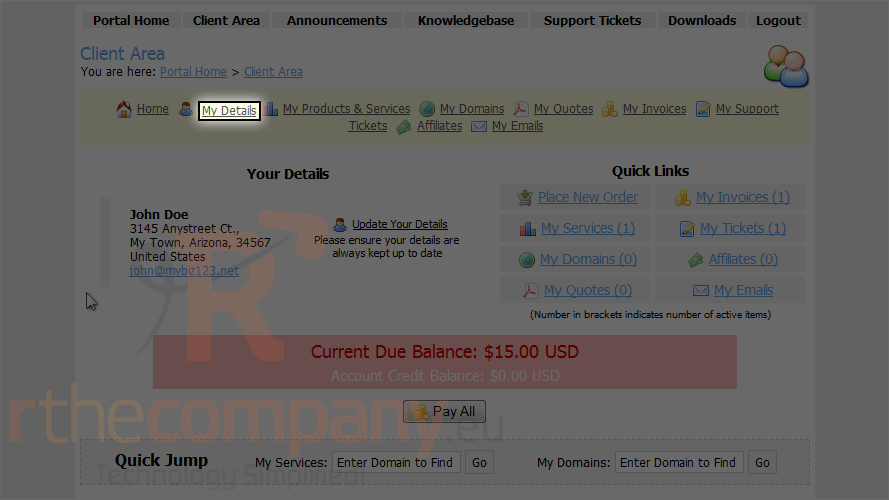
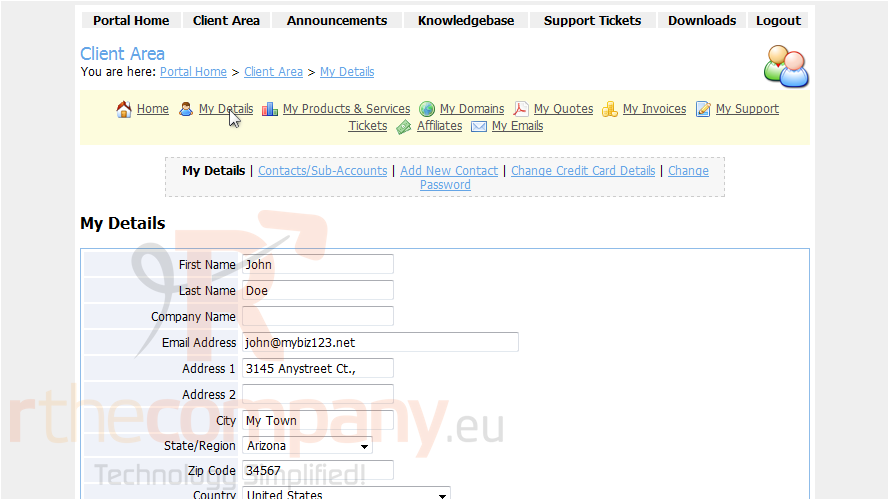
1) Click my details link.
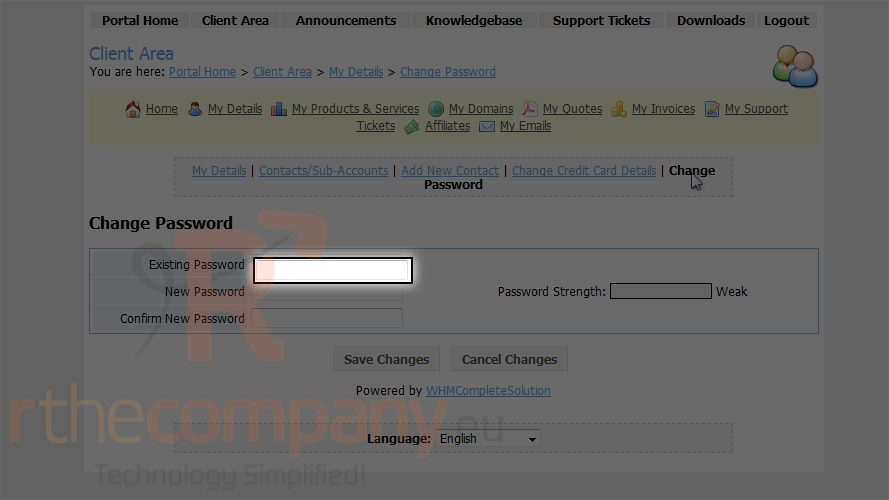
2) Click change password.
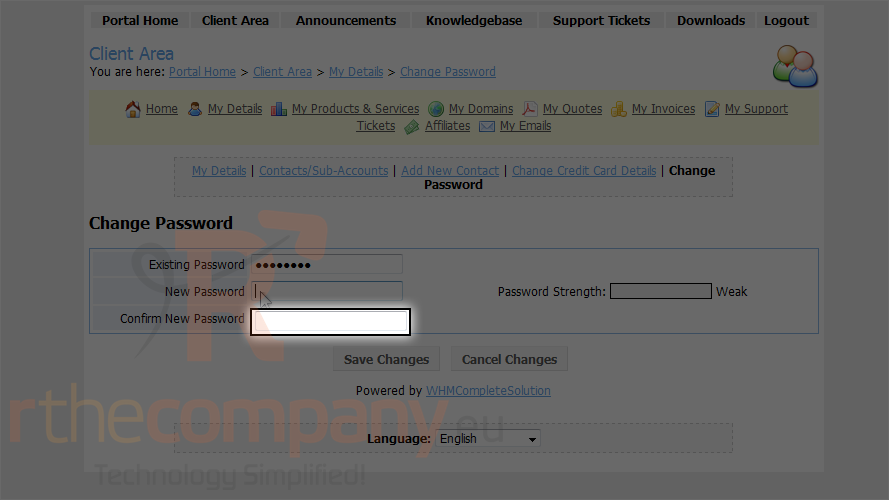
3) Type your exisiting password.
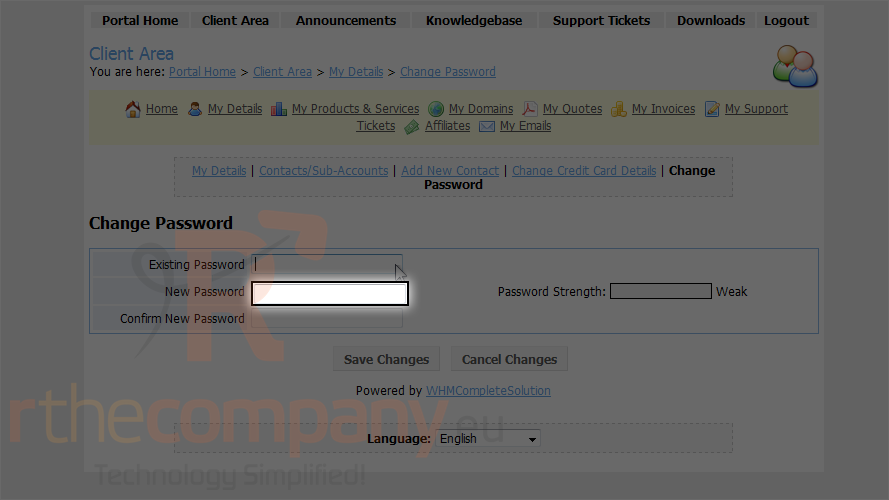
4) Enter a new password here.
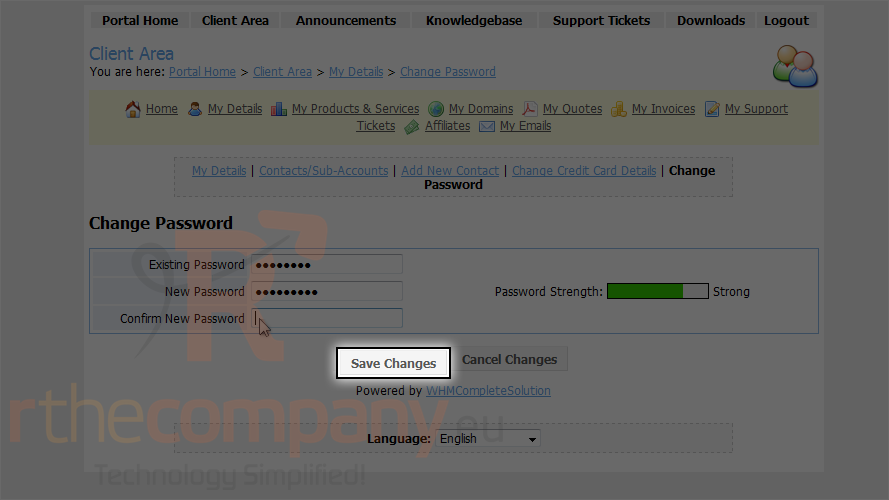
5) Re-enter your new password here.
6) Then click save changes.
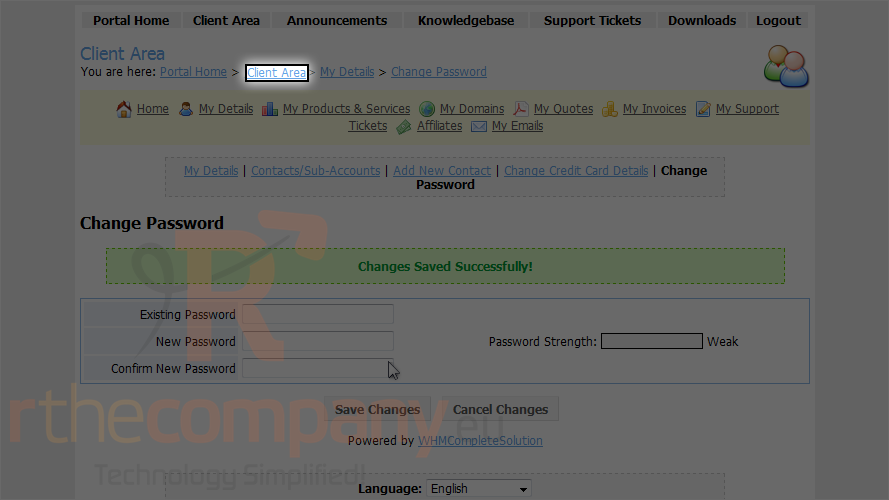
That's it! Our password has been changed.
Remember that you should change your password often, for security reasons.
7) Click client area link.
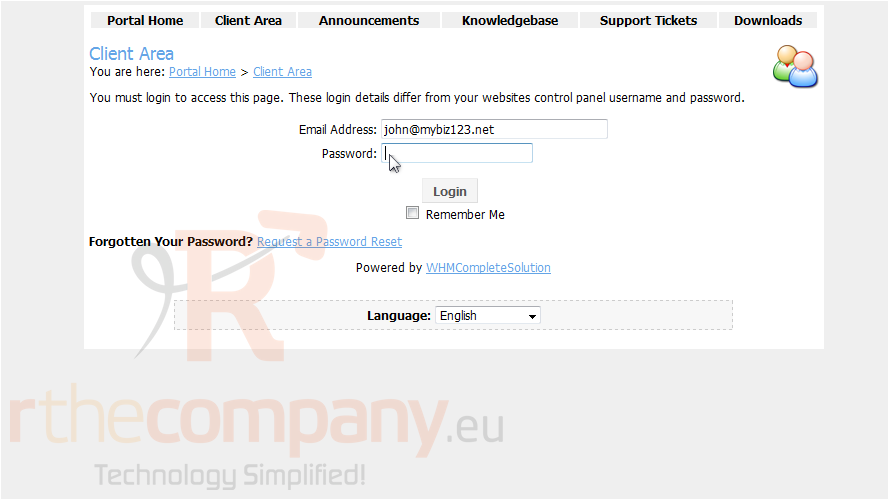
After changing your password, you will need to log in again. Let's do that now.
This is the end of the tutorial. You now know how to change your client portal password.