客戶系統 > 知識庫 > WHMCS 5: Management > 1. How to add a new client in WHMCS
1. How to add a new client in WHMCS
This tutorial assumes you've already logged in to your WHMCS admin panel.
Now let's learn how to add a client.
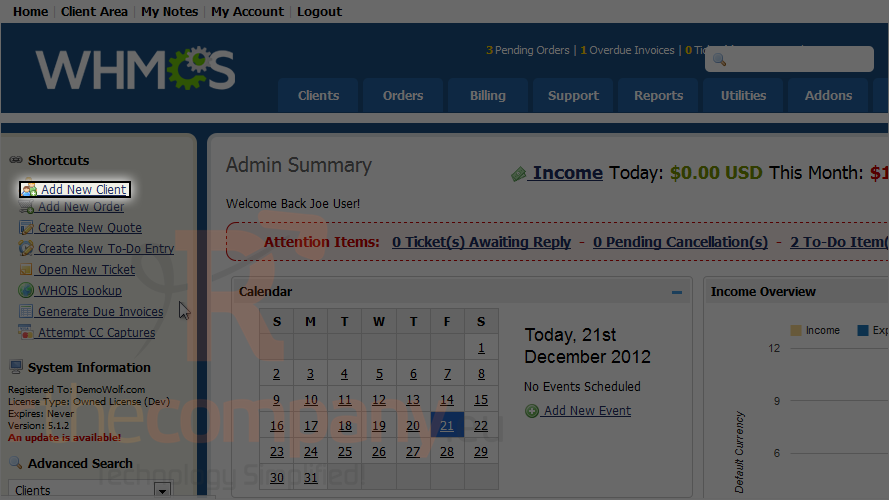
1) Click add new client.
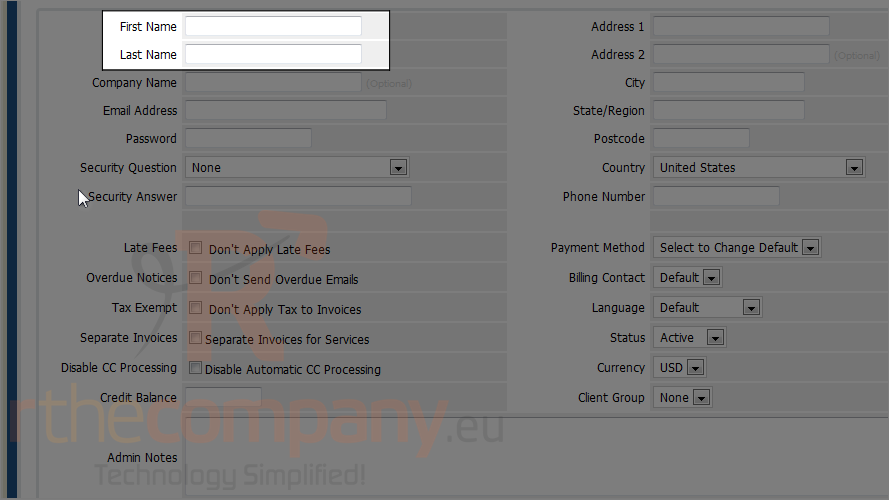
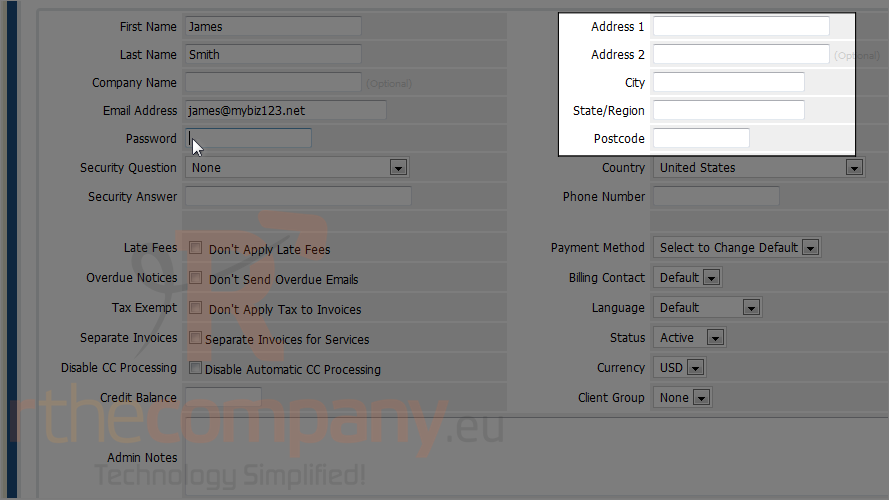
2) Enter a first and last name for the new client.
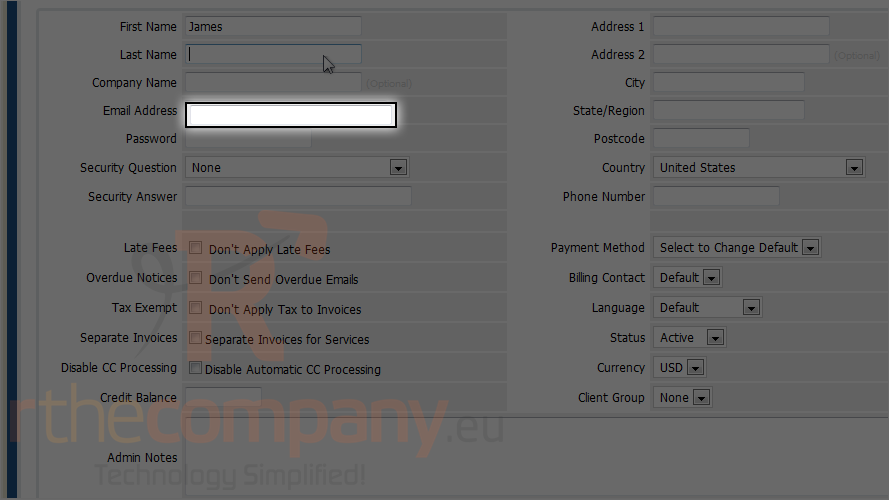
3) Type the client's email address.
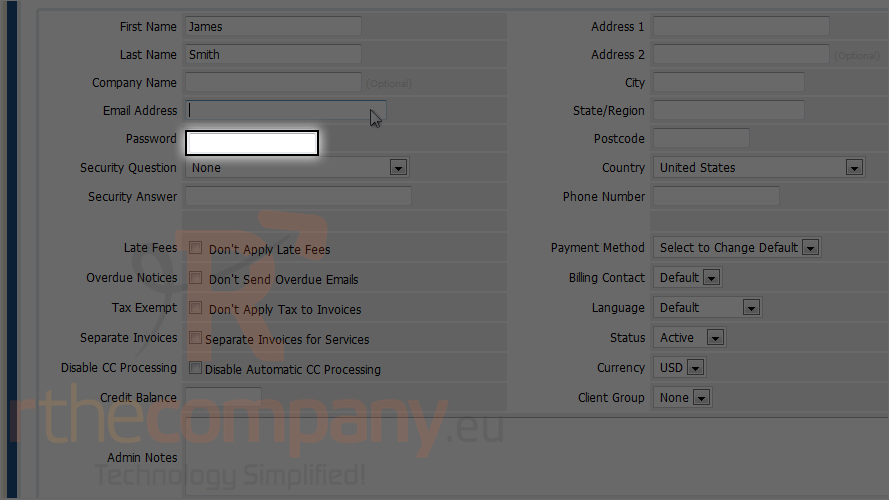
4) Choose a password.
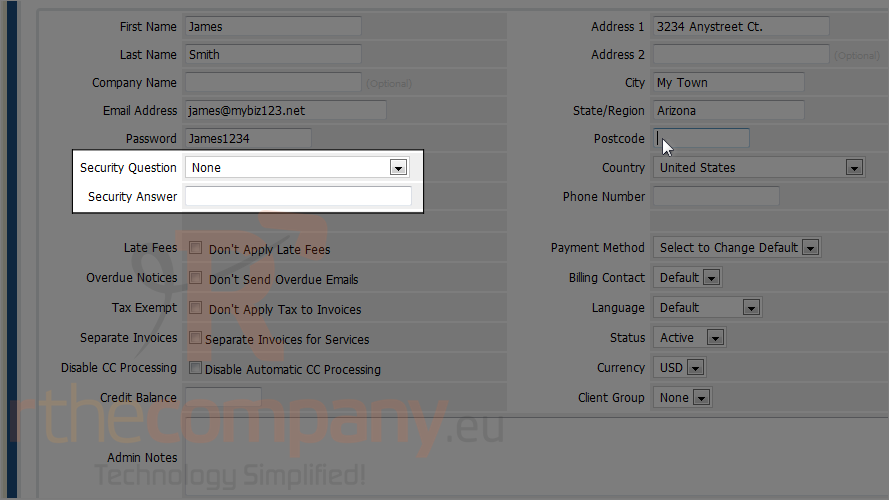
5) Enter the client's address.
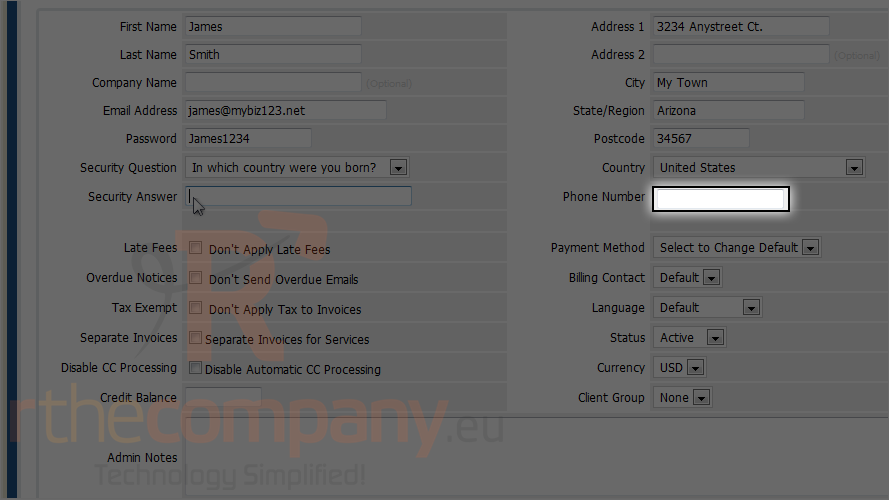
6) Choose a security question and type an answer.
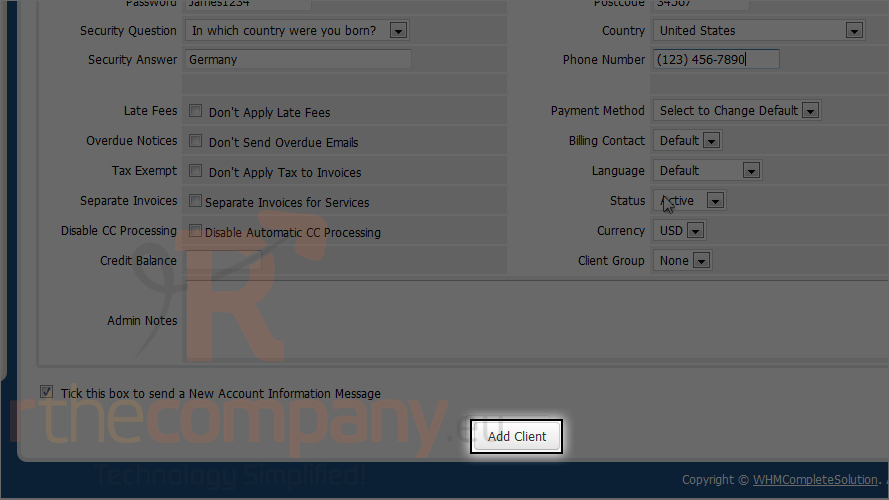
7) Enter the phone number.
Scroll down.
8) Click add client.
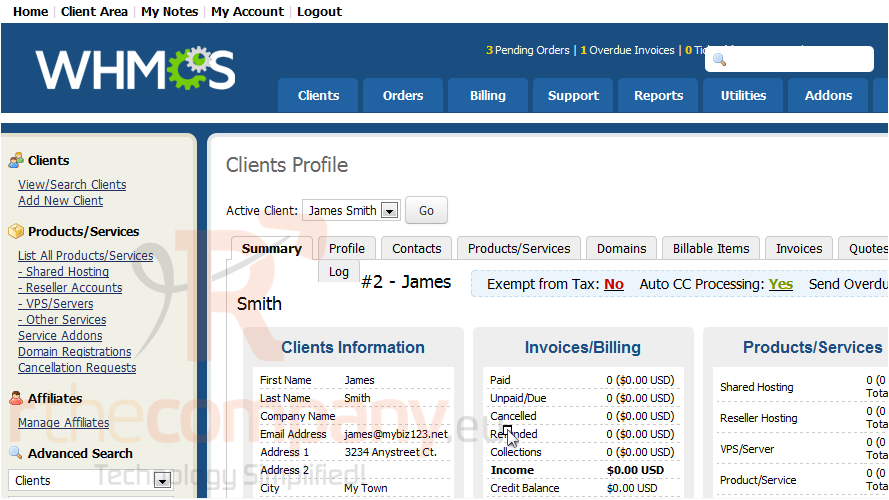
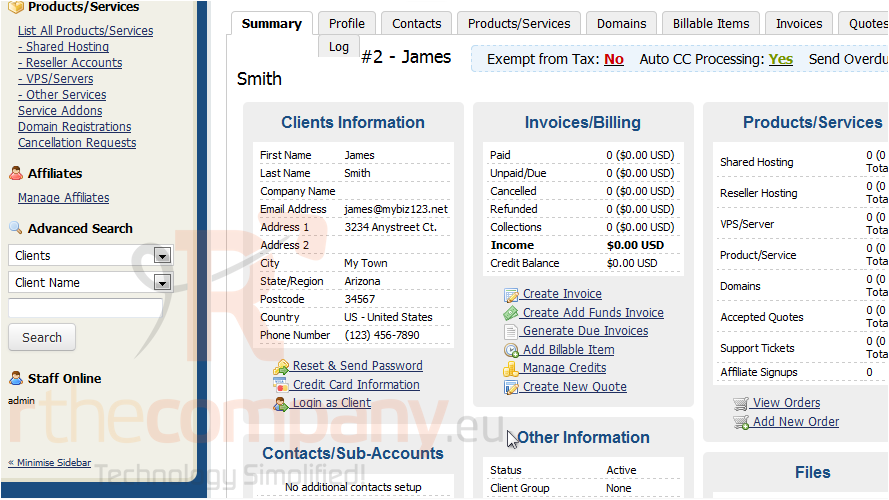
The client has been successfully added, and you can now begin managing the client's profile.
For information on how to manage these options, watch the next tutorial in this series.
That's it! You now know how to add a client in WHMCS.