客戶系統 > 知識庫 > ZenCart > 14. How to add products to your store in ZenCart
14. How to add products to your store in ZenCart
This tutorial assumes you've already logged in to Zen Cart
Now let's learn how to add products to your store
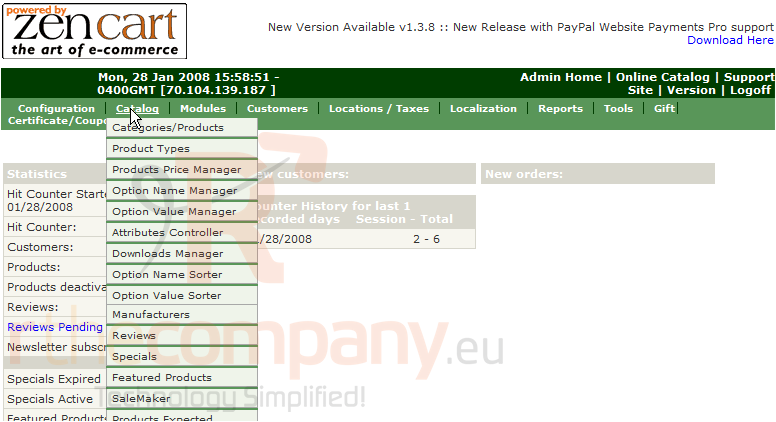
1) Place the cursor over Catalog
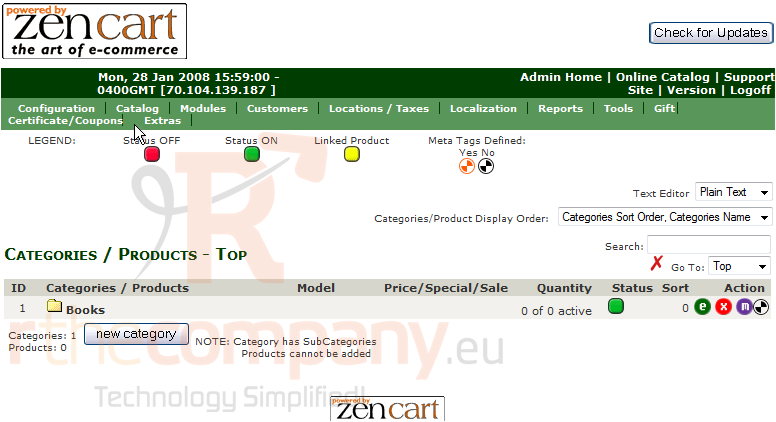
2) Click Categories/Products
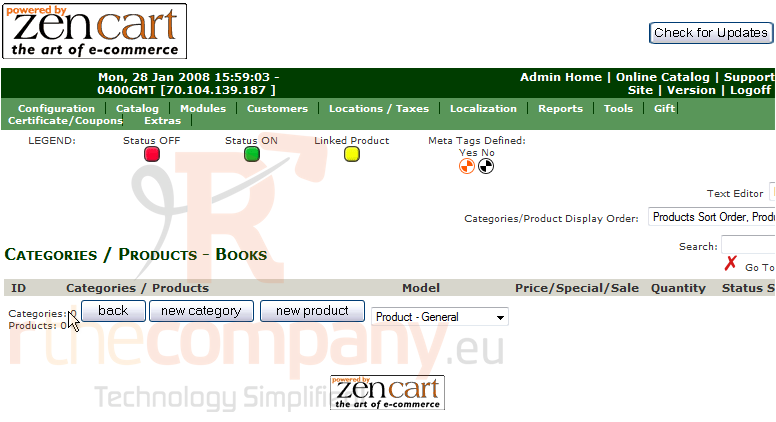
3) Click Books
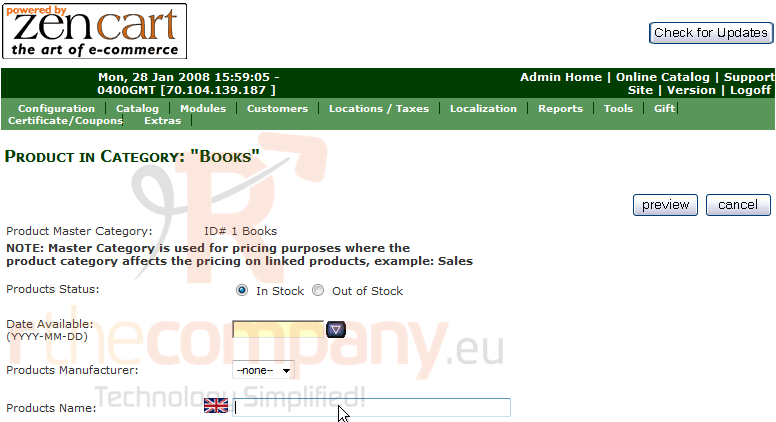
4) Click New Product
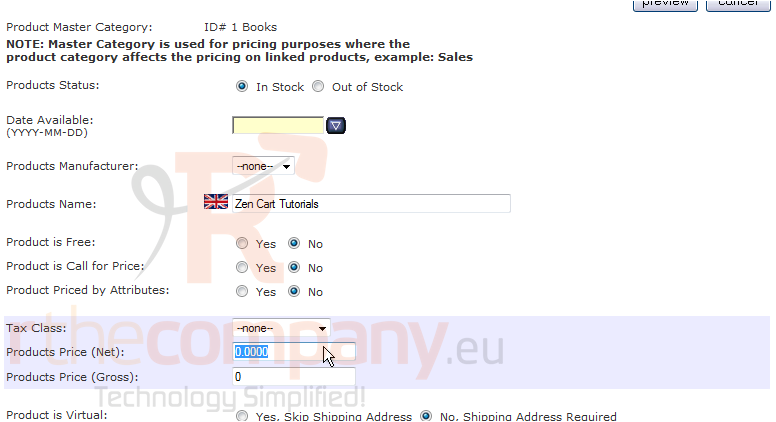
5) Enter the Name of the product here
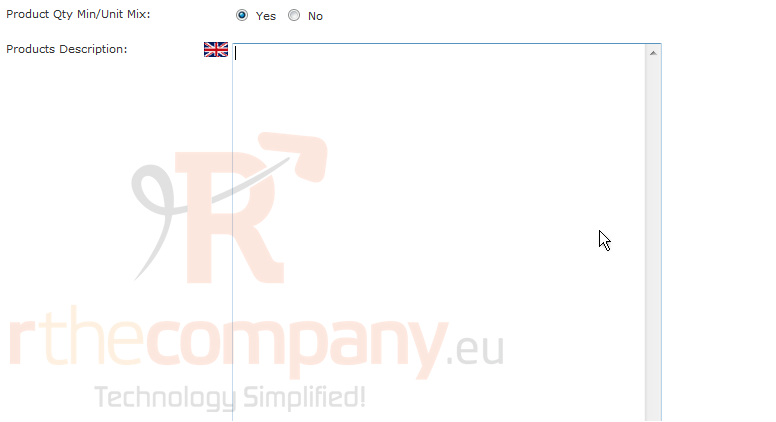
6) Enter the description of the product here
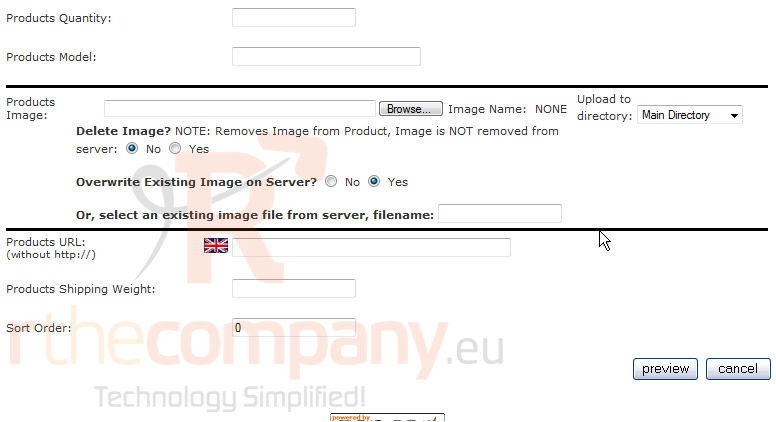
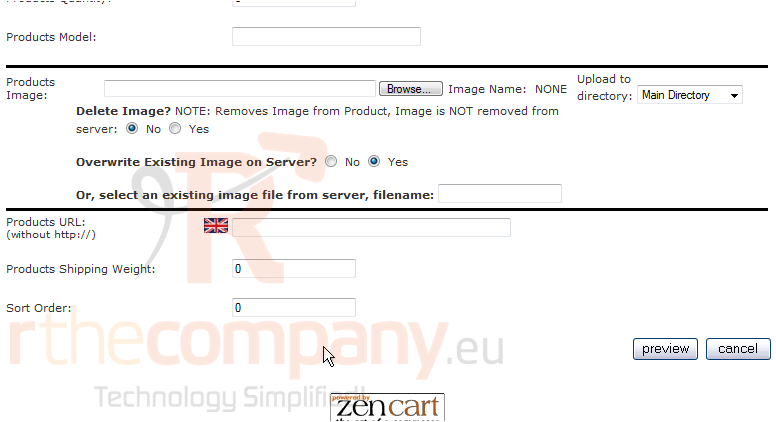
7) Click Preview
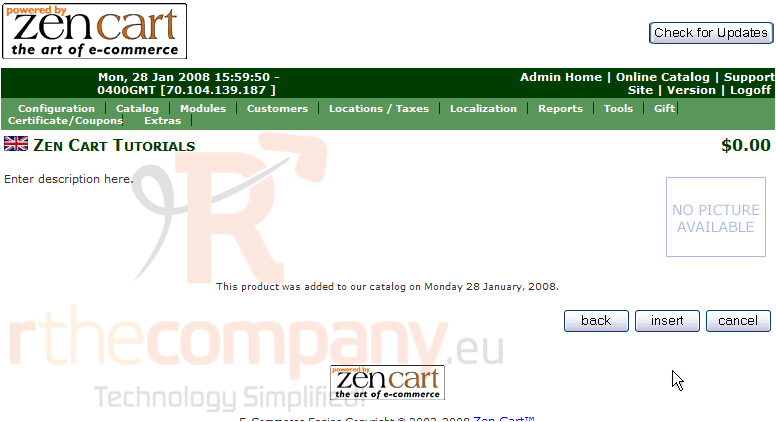
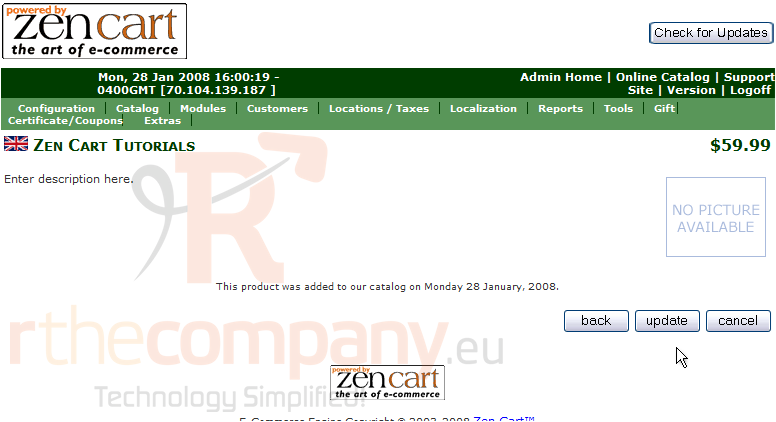
8) Click Insert
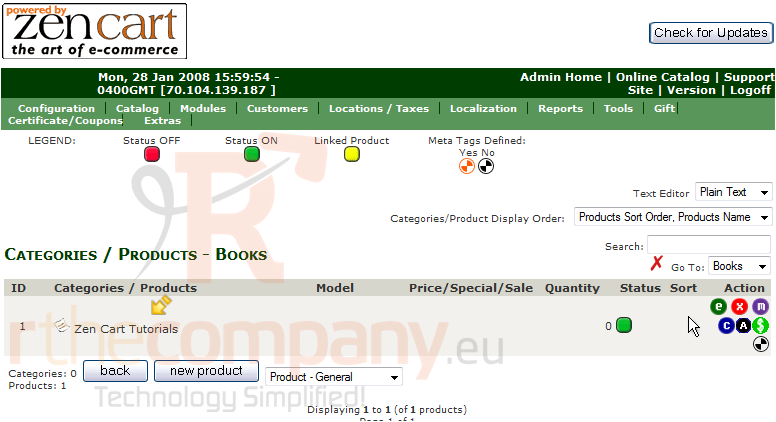
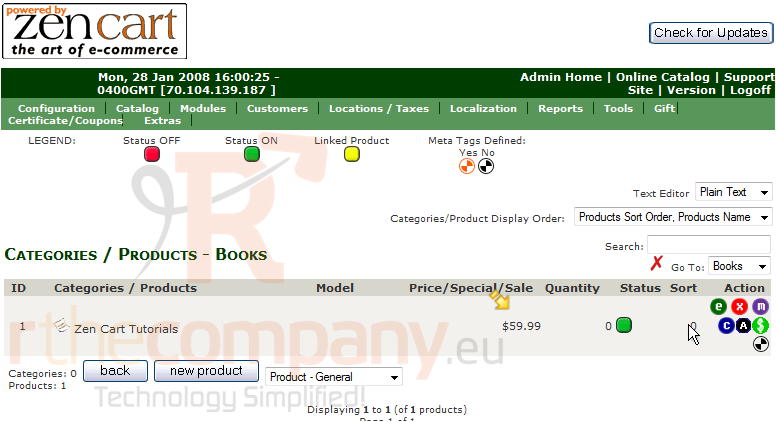
That's it! The new product has been added and can be seen here
9) Click here to edit the product
10) Enter a new price for the item
11) Click Preview
12) Click Update
That's it! The product has been edited
This is the end of the tutorial. You should now know how to add products to your store in Zen Cart