Почетна > База на знаења > WHMCS 5: Management > 9. How to manage downloads using WHMCS
9. How to manage downloads using WHMCS
This tutorial assumes you've already logged in to your WHMCS admin panel.
Now let's learn how to manage downloads.
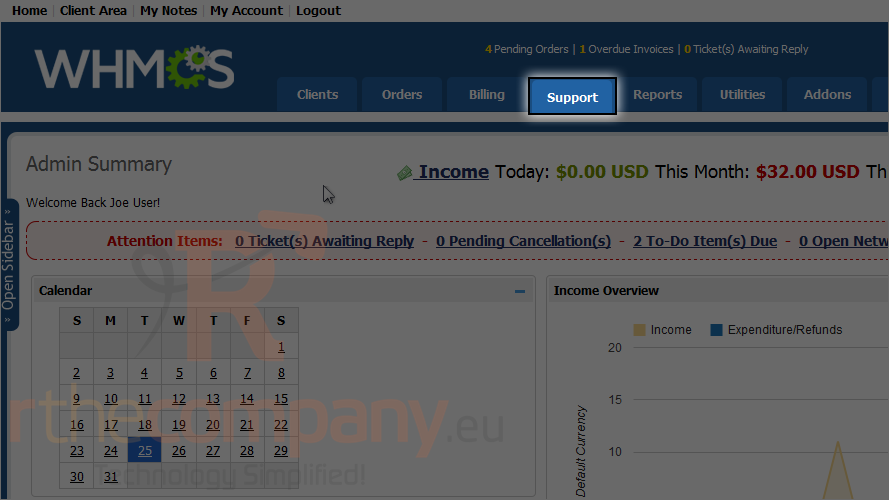
1) Go to the support menu.
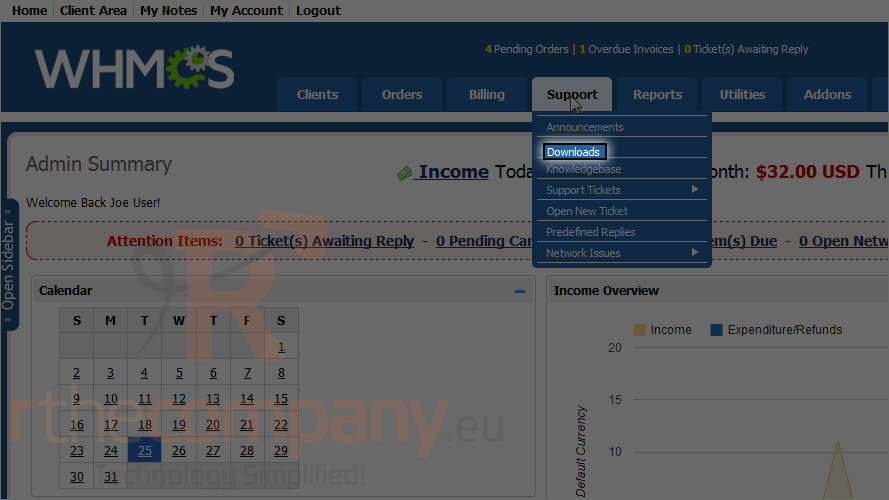
2) Click downloads.
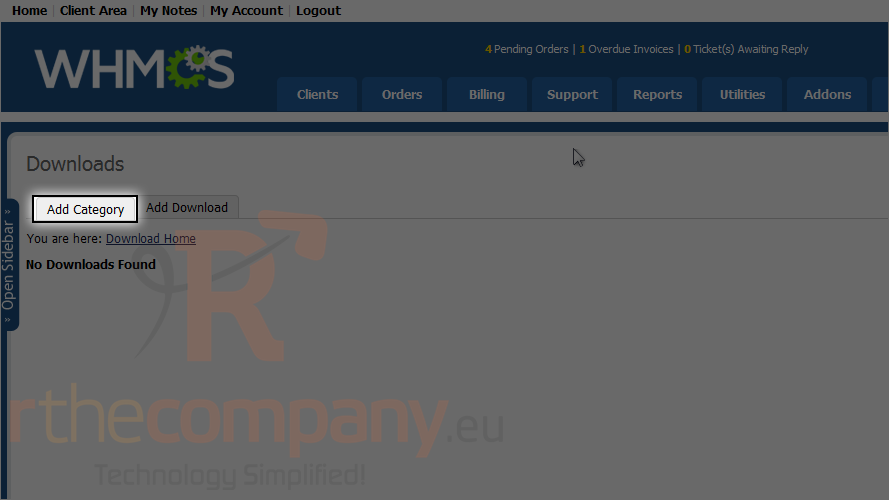
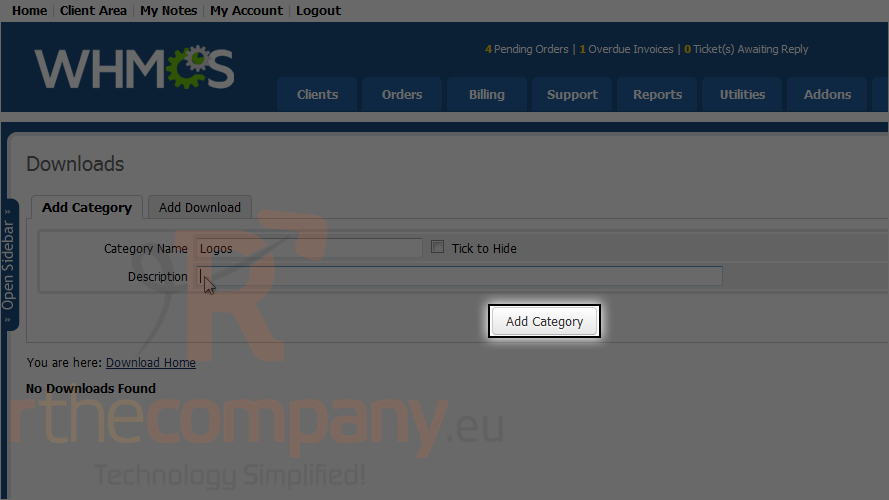
3) Click add category.
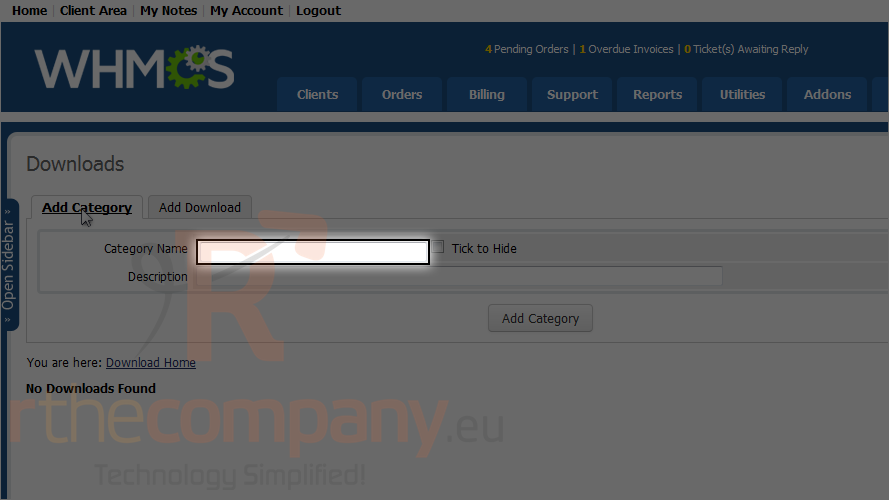
4) Type a category name and description.
5) Click add category.
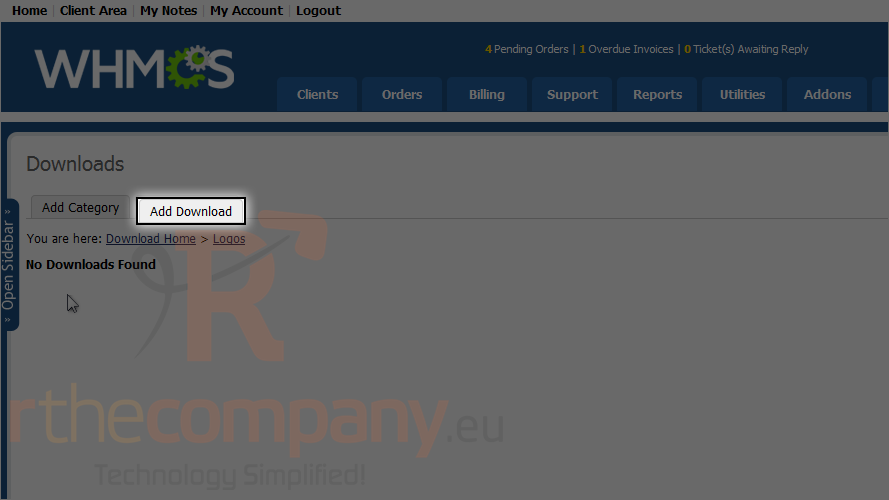
Now click the category we just added.
6) Click add download.
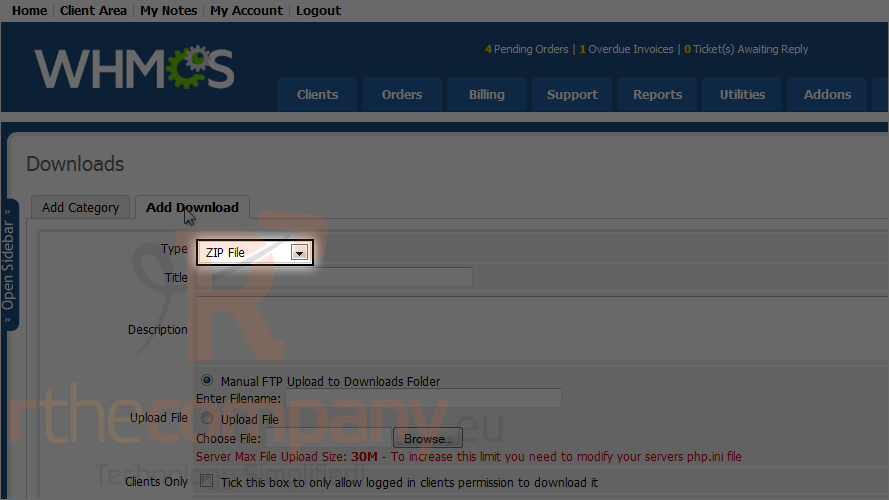
7) Choose the type.
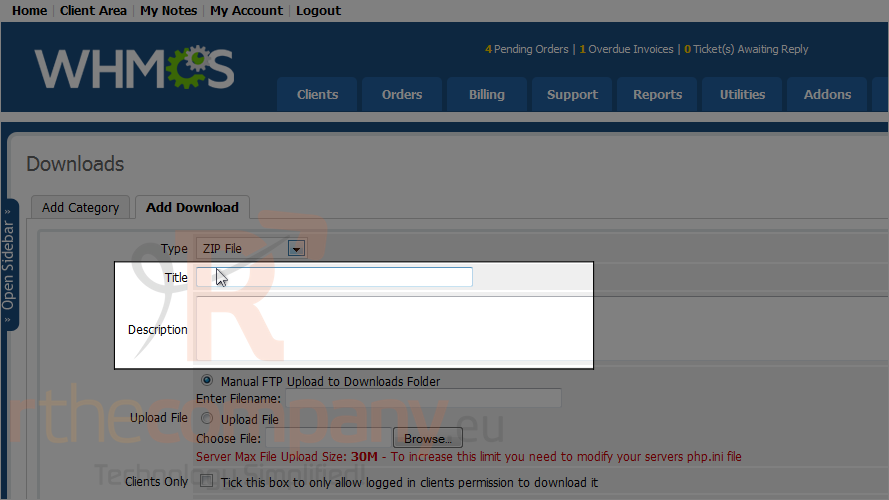
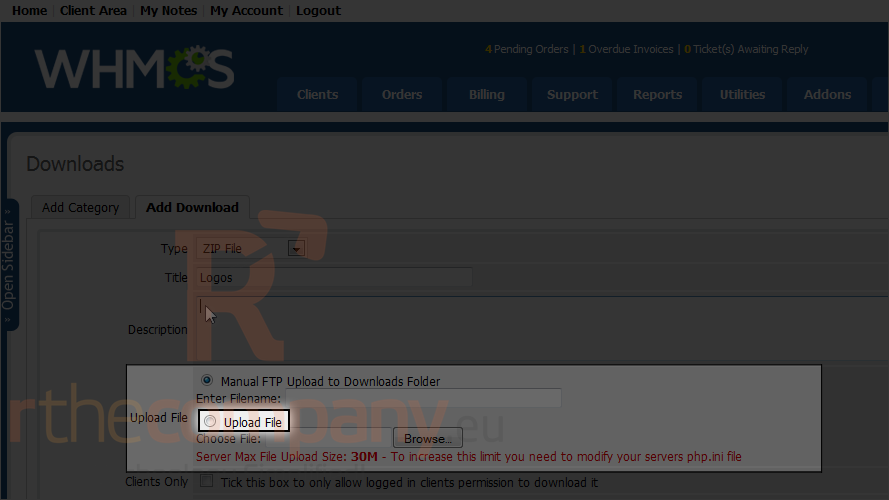
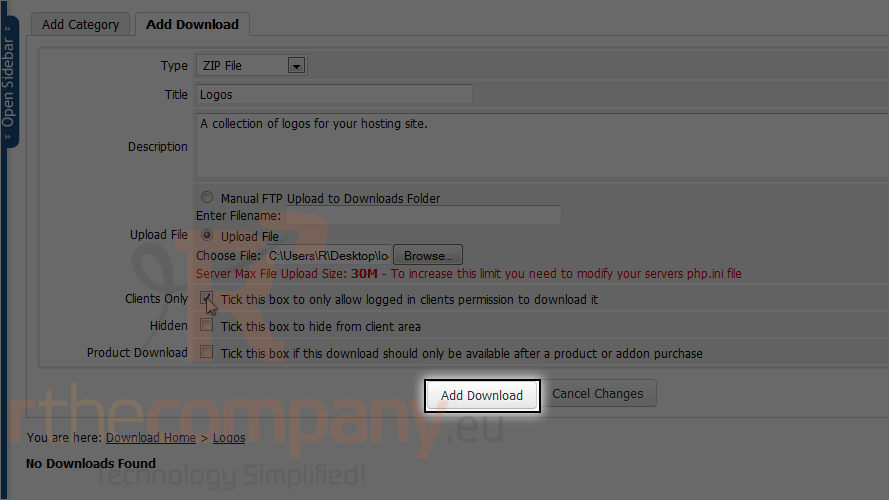
8) Enter a title and description.
You can upload a file using an FTP manager then type the URL to the file, or upload directly from your computer.
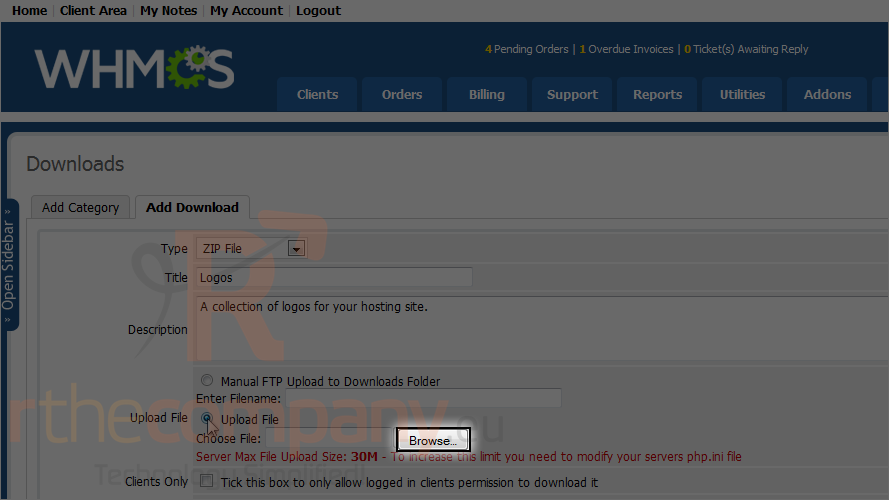
9) We'll choose upload file.
10) Click browse.
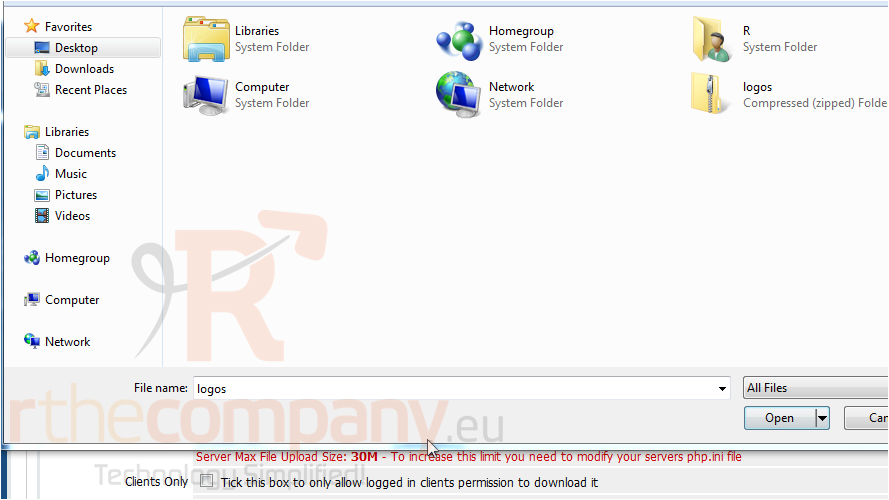
11) Locate the file on your local machine and double click on it.
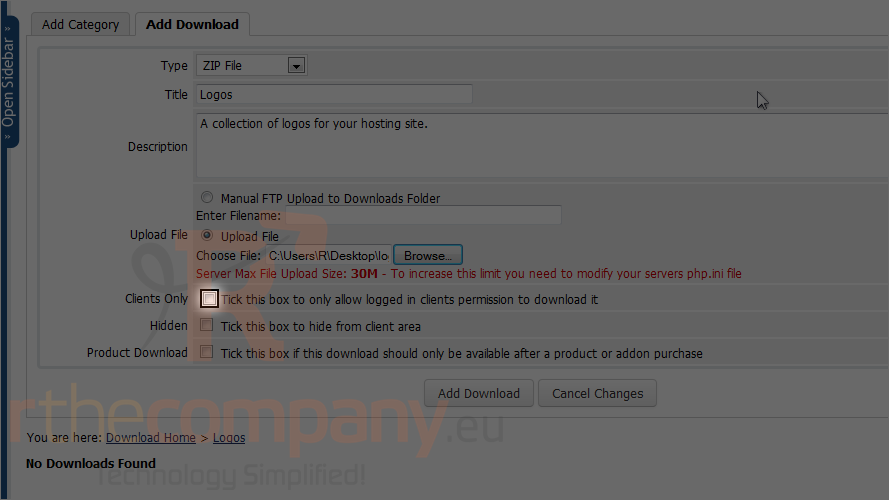
12) To allow only logged in clients to download the file, check this box.
13) Click add download.
That's it! You now know how to manage downloads in WHMCS.
 Додате го во листа на фаворитни прашања
  Испечати